What's New
PRODUCT UPDATES


A clearer & easier way to work in Engage Suite CMS


We have refreshed the Engage Suite CMS interface with clearer navigation, improved overviews and more efficient workflows.

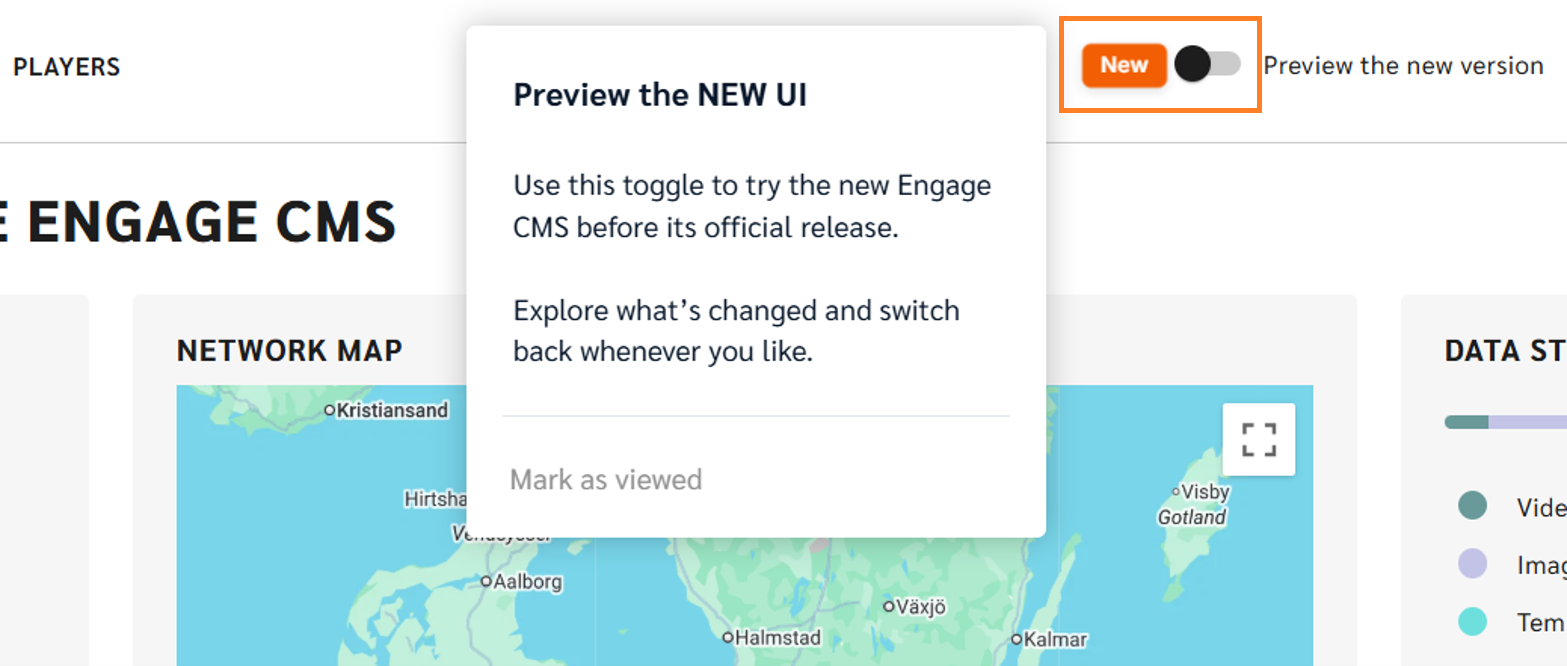
Have you noticed the New UI toggle?

It gives you an early look at the refreshed Engage Suite CMS before its official release. Turn it on to explore the changes and get familiar with the new experience.

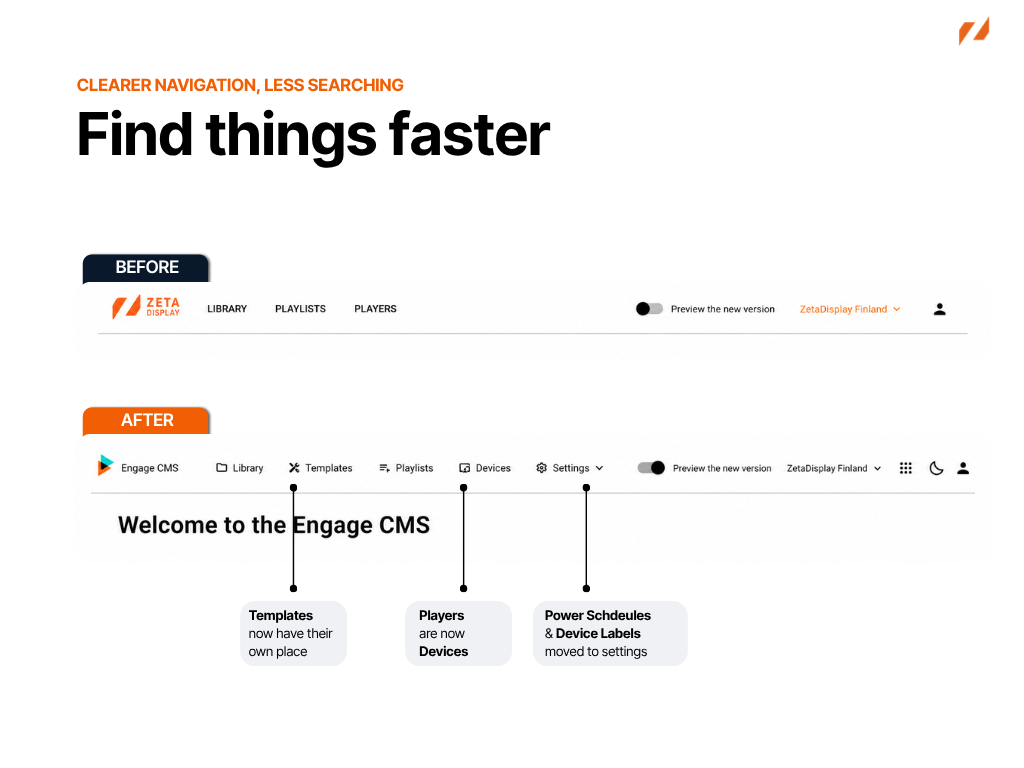
Find things faster

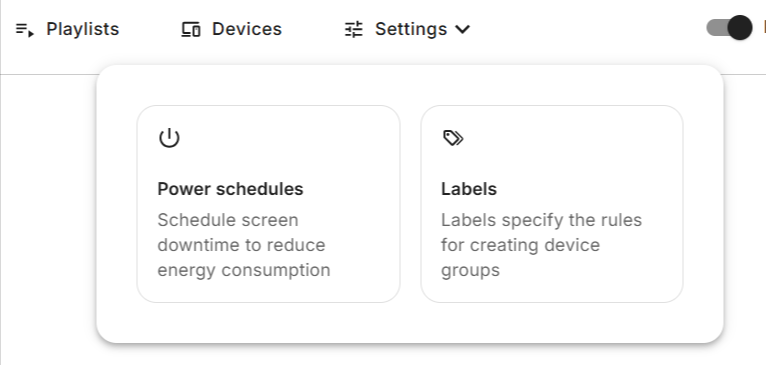
The updated navigation makes it easier to find the areas you use most. Many familiar features are still there, but they have been reorganised into a more intuitive and consistent structure.


· Templates now have their own navigation item

· Players have been renamed to Devices

· Power Schedules & Device Labels have moved from Players to Settings


This makes everyday navigation simpler, with frequently used features easier to find and quicker to access.

Get a better overview

Playlist management is now easier to review than before.


Managing multiple playlists often means checking which ones are active, how they are configured and which content takes priority. The updated playlist overview brings this key information directly into the list view, so you can understand what is happening without opening each playlist individually.


This means fewer clicks to check important details and a faster way to spot what may need your attention.


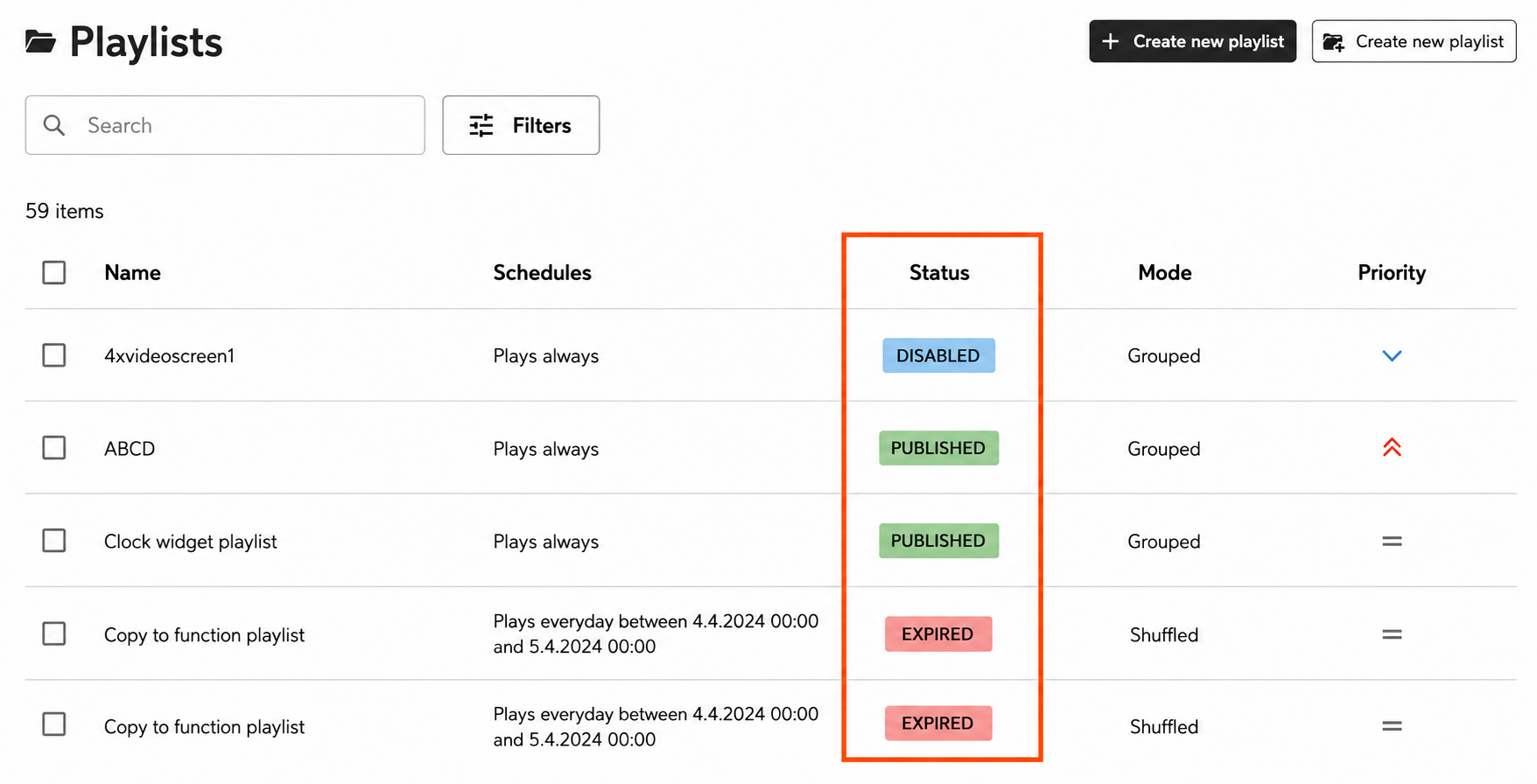
Status

Quickly see whether a playlist is published, disabled or expired.


This makes it quicker to understand which playlists are currently available for playback.


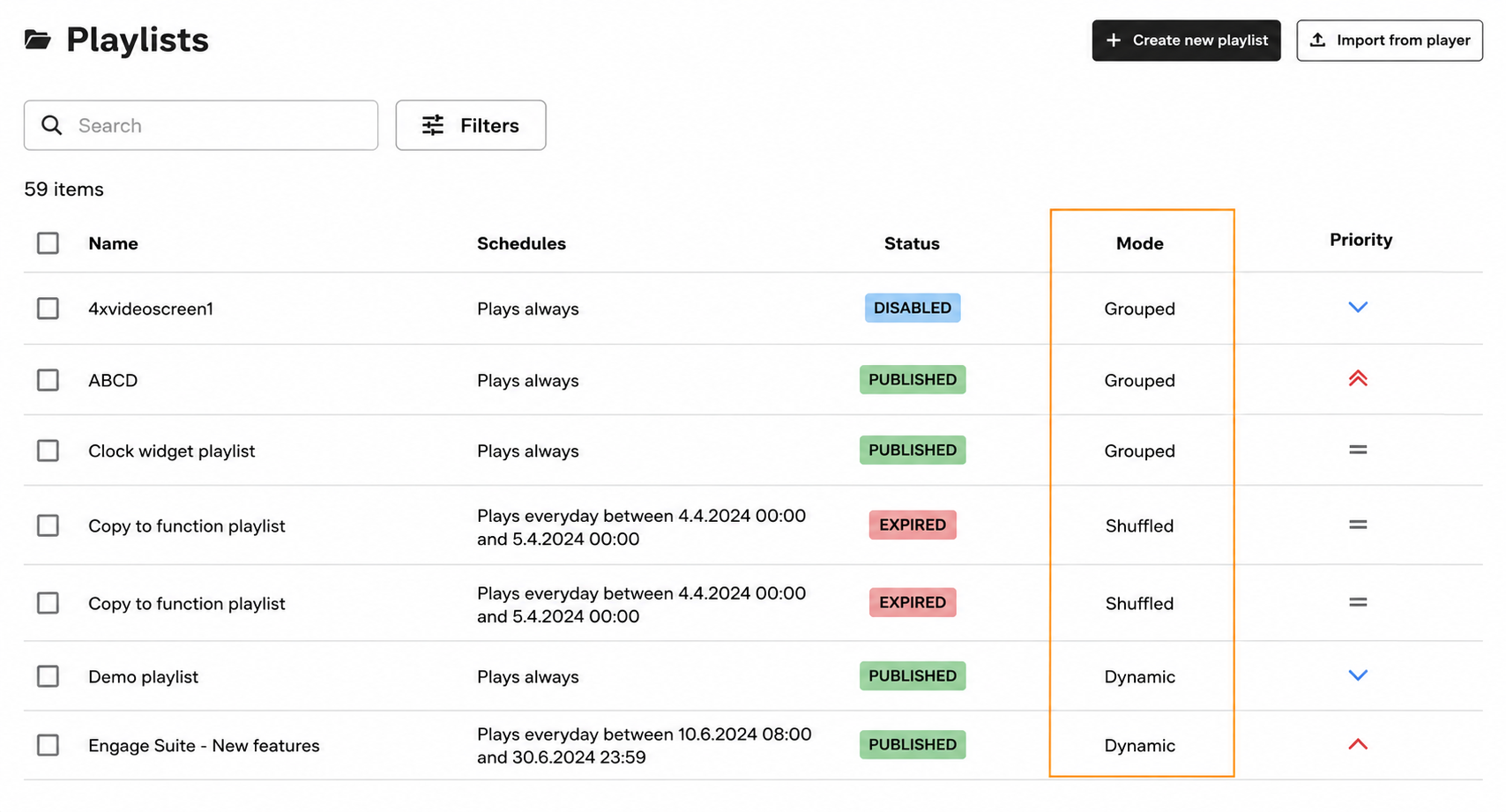
Mode

See each playlist’s playback mode directly from the overview, making it easier to understand how it will play alongside other playlists scheduled on the same device.


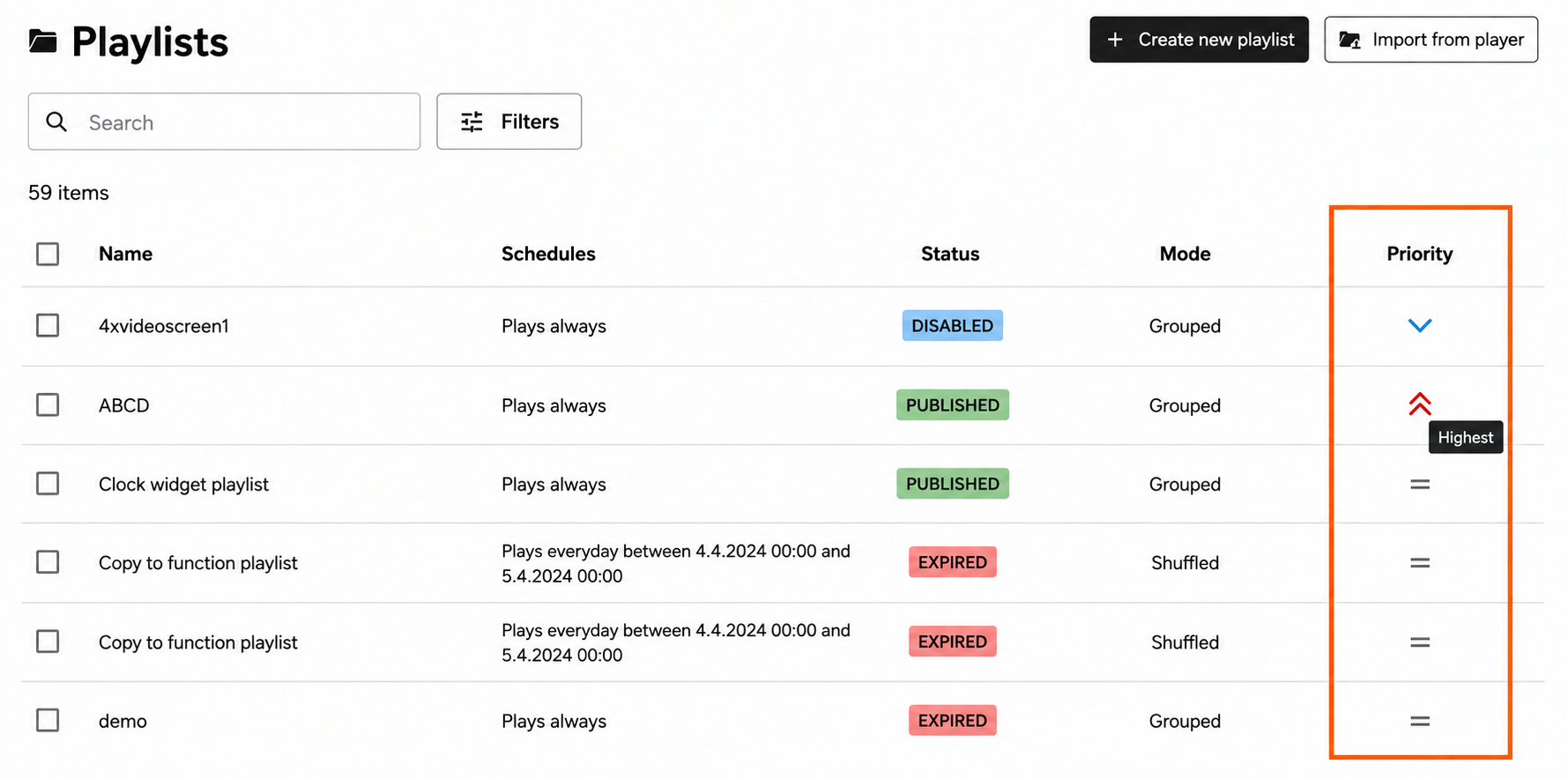
Priority

Playlist priority is now visible directly in the playlists overview, making it easier to compare playlists and understand which content takes precedence without opening each playlist individually.


This is especially helpful when working with larger playlist collections, where users need to check details quickly and understand what needs attention.

Manage everyday tasks with less friction

Common workflows have been updated to feel clearer and more consistent across the CMS.


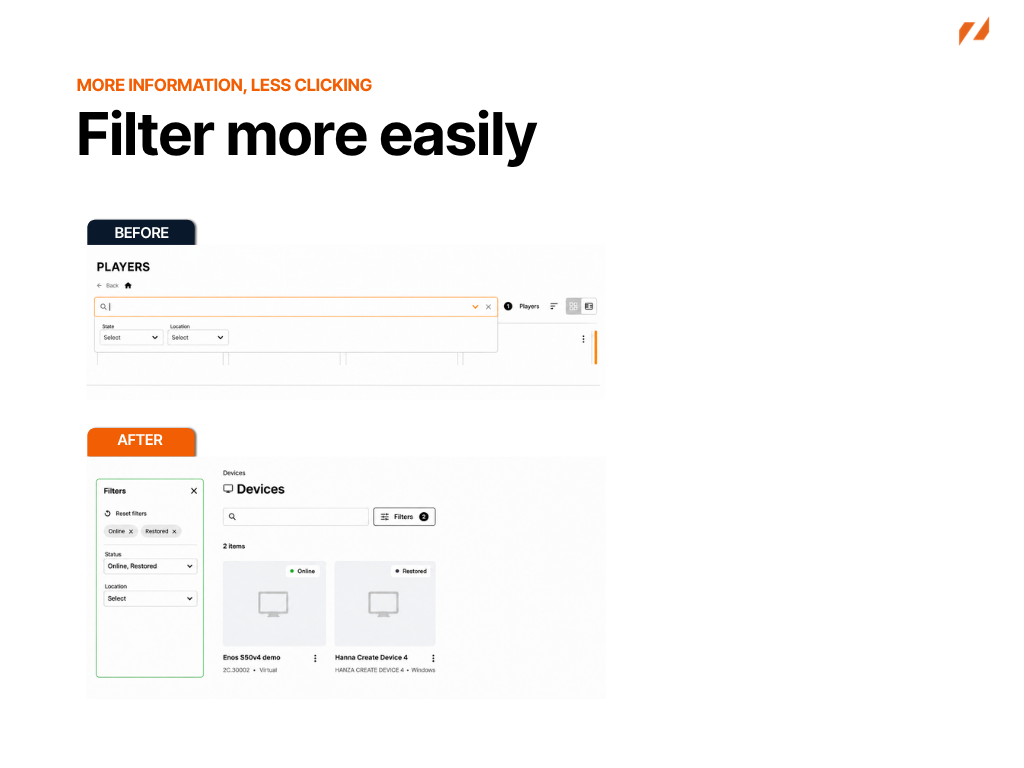
Filter more easily

Narrow down large lists more easily. Filters are now available in a dedicated side panel, giving you a clearer view of your options and making it easier to adjust multiple filters when looking for specific content or devices.


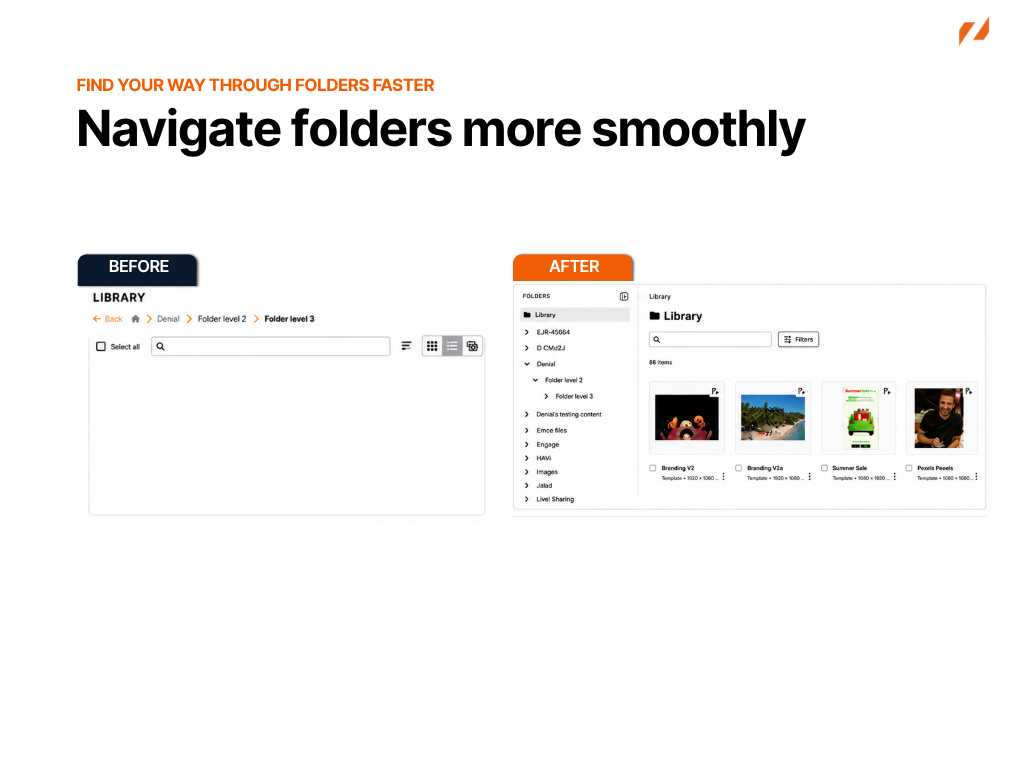
Navigate folders more smoothly

Move between folders without losing your way. The updated side navigation makes it easier to see where you are and move between folders, subfolders and device groups.


This is particularly helpful when working with larger or more complex structures.

Manage Power Schedules and Labels more easily

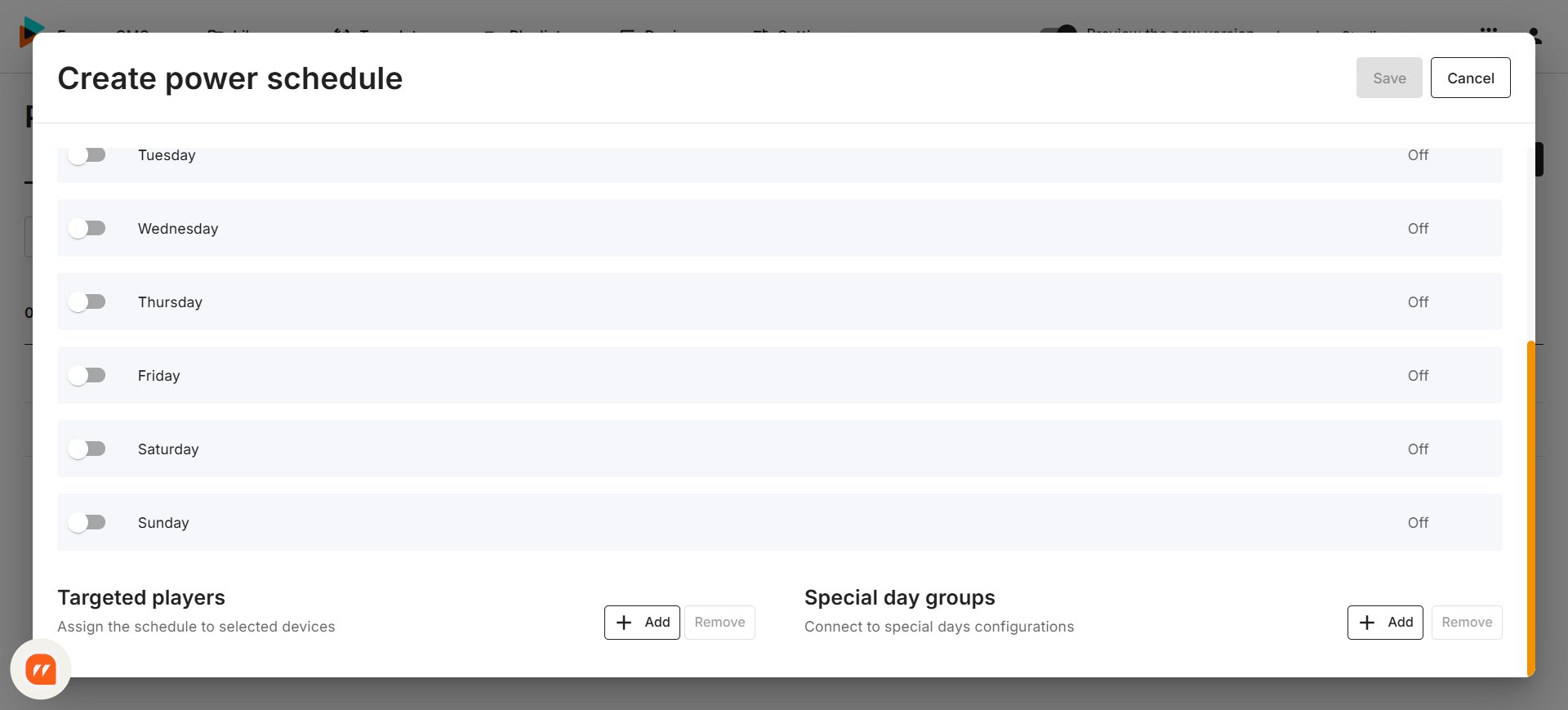
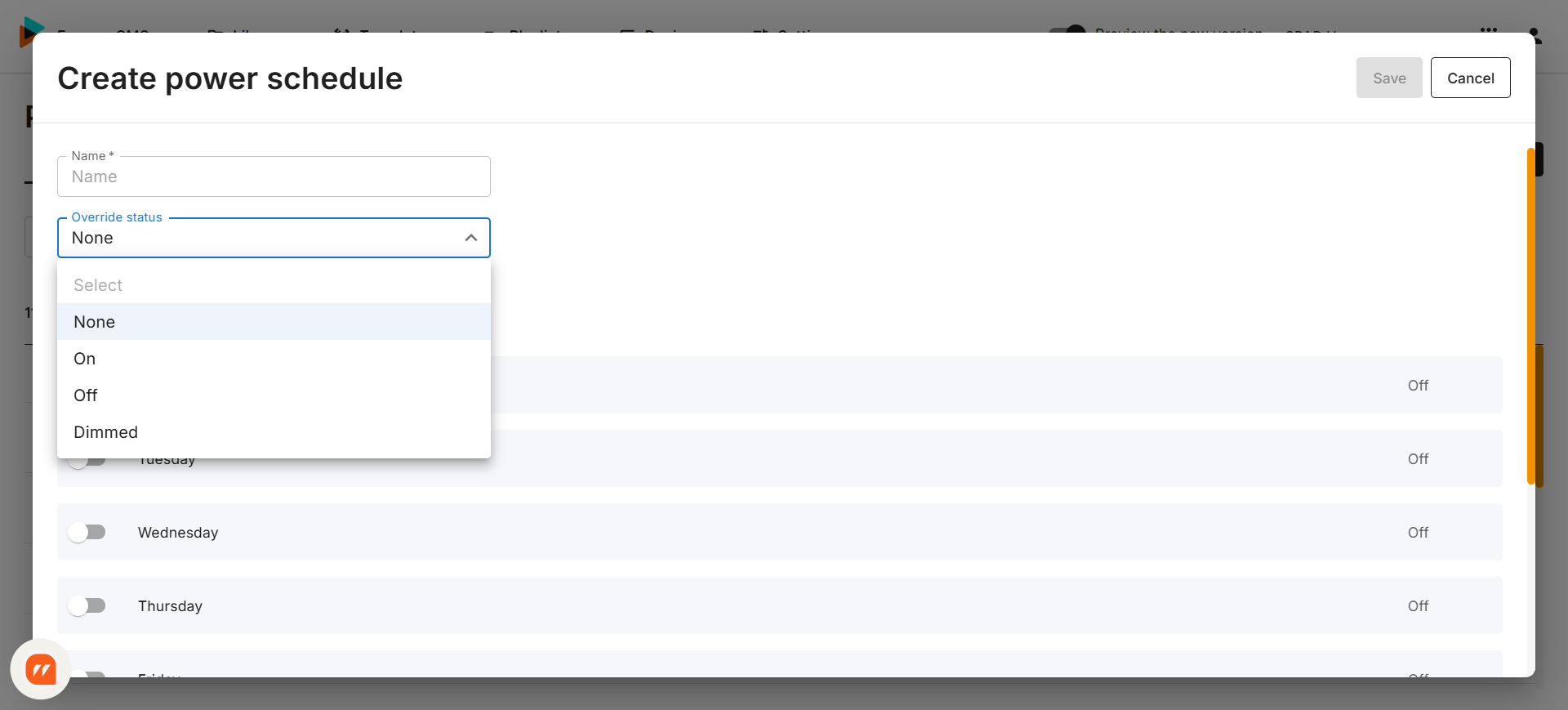
Power Schedules and Device Labels have also been refreshed with updated overview, create and edit experiences. More information about these updates will be shared in separate articles.

Explore the new UI

Together, these updates help users find what they need faster, understand key information at a glance and manage daily CMS tasks with more confidence.

Share your feedback

As you explore the new UI, we’d love to hear what you think. Use the feedback form linked here to share your experience, suggestions or anything you think could be improved.

Find the feedback form in Engage CMS

You can also access the feedback form at any time from Help & Guides in Engage CMS:

  1. Open Help & Guides from the profile menu.
  2. From Home, select New UI Articles.
  3. Select Give feedback on the New UI to open the feedback form.


last week
BEST PRACTICE

Matching screen content to key store moments

Digital signage can do more than display messages. It can shape how customers move, choose and experience a space.

Used well, it welcomes people in, highlights key products, supports navigation and delivers timely, relevant information at exactly the right moment.

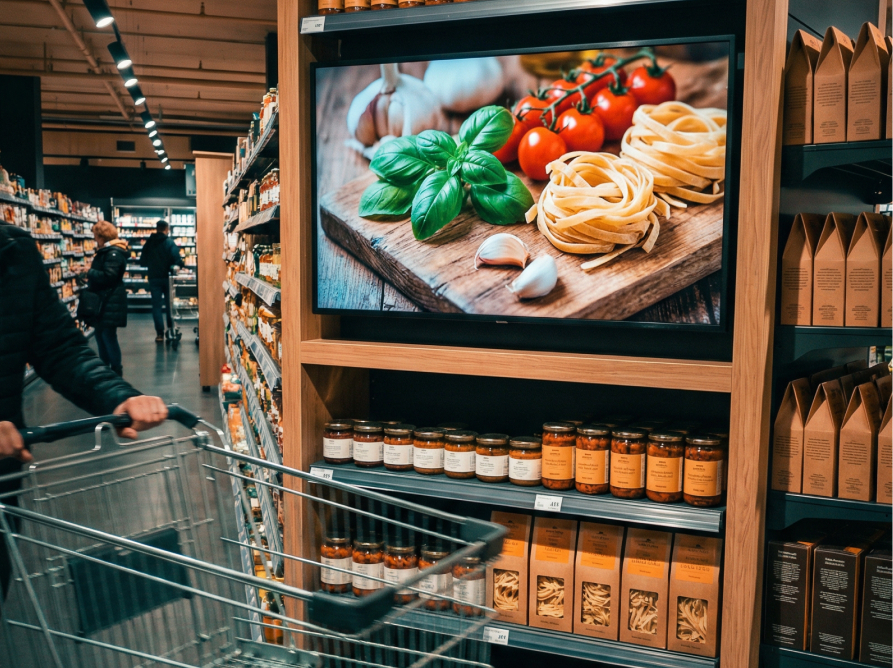
Take a grocery store as an example. Across modern grocery environments, digital signage helps welcome shoppers, highlight fresh food choices, support navigation and share timely updates. And the same principles apply just as well to fashion, electronics, DIY or any other retail environment.

Content with a clear purpose

The most effective digital signage isn't just about promotions. Screens and content are strategically planned around how customers move through the store and what each area needs to achieve.


At the entrance and in window-facing areas, screens help attract attention, welcome customers and create a strong first impression.

In deli and takeaway areas, digital menu boards and food videos show weekly offers, fresh meals and product options while customers wait.

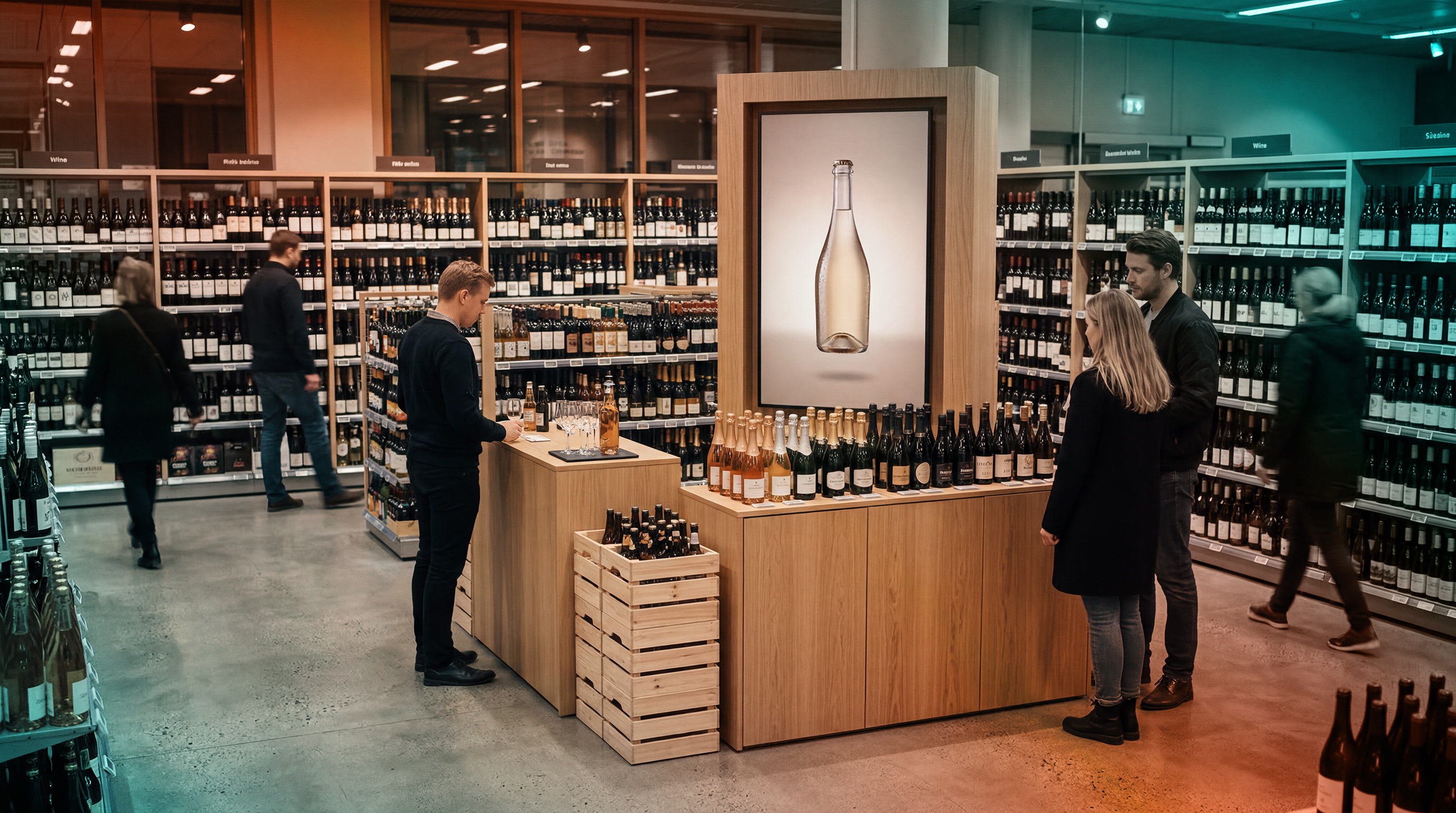
In wine sections and speciality areas, screens can promote tastings, share useful product information or supplier stories. This can help customers discover new/alternative products they may have otherwise overlooked.

In larger or multi-level stores, digital displays can also help guide customers to different areas.

These are grocery retail examples, but the same thinking applies across any retail environment.

Applying this to your Store

Think about the key moments in your own store. Every store has moments where customers need something different from the space. They may be entering, choosing, waiting, exploring or finding their way.

Successful in store digital communication works best when the content matches the location and the customer's needs at that moment.

At the entrance, the message should help draw people in. Near service counters, it should support decisions. In speciality areas, it can encourage customers to explore more. In larger or busier stores, it can also guide movement through the space.

When communication is planned around the customer journey, it becomes part of the store experience instead of just another display channel.


Practical uses

  • Draw Attention: Catch attention in entrances, windows or high-traffic areas
  • Support Decisions: Help customers understand choices, offers or next steps
  • Guide Movement: Help people find departments, counters, floors or service areas
  • Promote Key Offers: Feature fresh food, premium ranges, local suppliers etc
  • Cross-selling: Promote related products, offers or actions near key decision points
  • Adapt to Each Location: Tailor content to the store layout, audience, time of day and local needs


Want to see these principles in action? Explore our grocery retail digital signage cases for real examples of screens shaping the shopping experience.

last month
NEW FUNCTIONALITY

Add content to playlists faster

Adding content to playlists is now faster and more intuitive.

Previously, when editing a playlist, you had to open the Library, upload your content, and then add it to the playlist.

Now, you can simply drag and drop files directly from your computer into a playlist. Once the upload is complete, the content is automatically added to both your playlist and your workspace in a single step.


Why does this matter

Updating playlists now requires fewer clicks and less navigation.

Whether you're creating a new playlist or making a quick content update, you can add content directly where you're working instead of switching between the Playlist editor and the Library.

This streamlined workflow reduces interruptions and helps you prepare content for publishing more quickly. Uploaded content is still saved to the Library, making it available for future playlists and campaigns.

2 months ago