
Create a New Power Schedule in the New CMS
Power Schedules allow you to control when your devices are powered on, powered off throughout the week. You can also create exceptions by connecting Special Day groups, making it easy to adjust schedules for holidays, events, or other one-time occasions.
In this article, you'll learn how to:
- Create a new Power Schedule
- Configure weekly settings
- Assign devices
- Create an connect to a Special Day group
Create a New Power Schedule
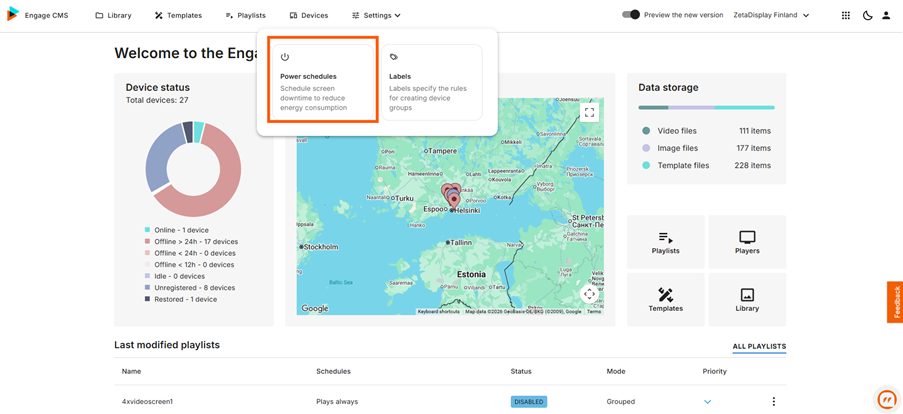
- Open Power Schedules.
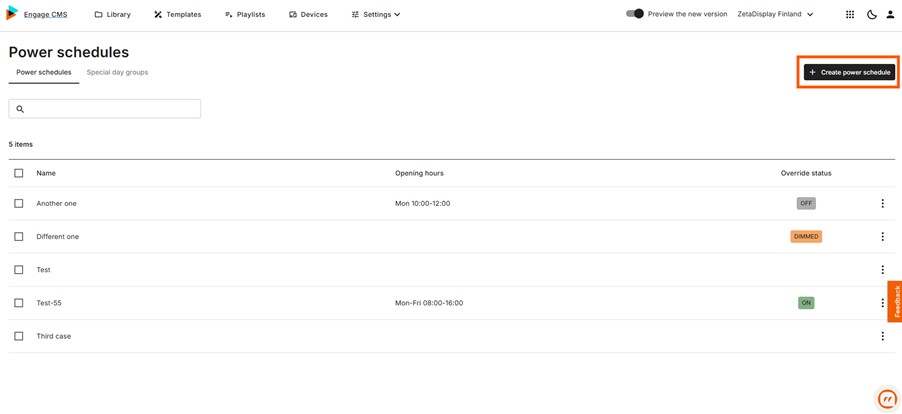
- Select Create Power Schedule.
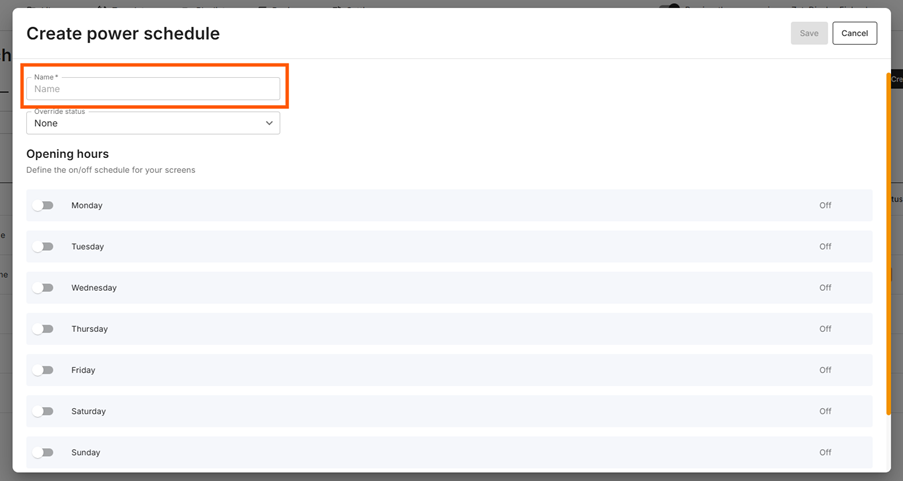
- Enter a name for the schedule.
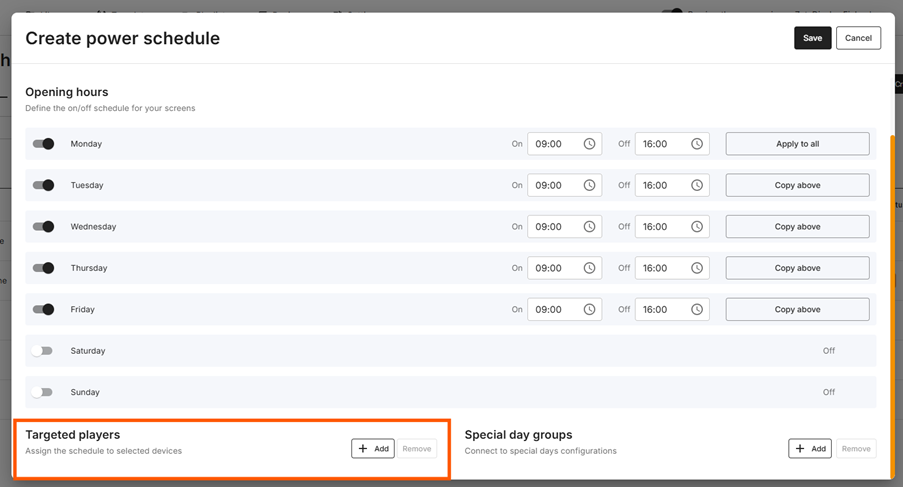
4. Configure the power settings.
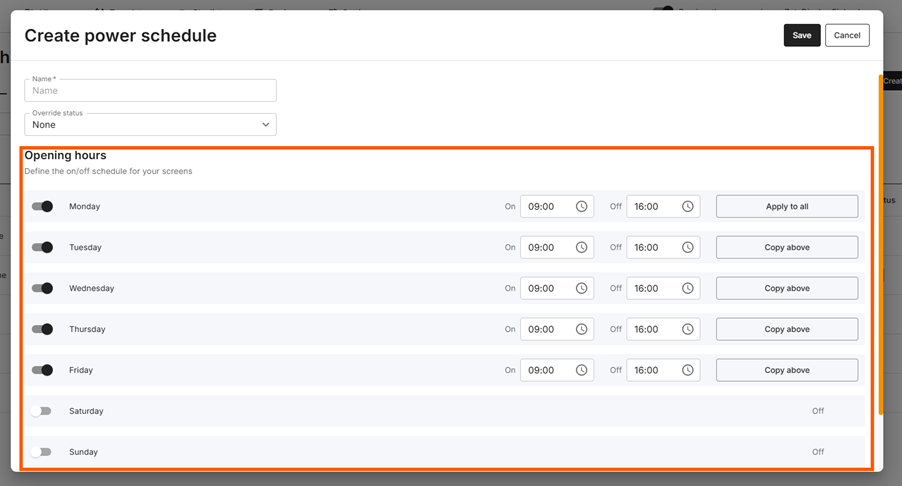
The weekly schedule controls when your screens turn on and off each day.
For every weekday you can define:
- Power On time
- Power Off time
To speed up configuration you can:
- Apply the same schedule to every day
- Copy the previous day's schedule
- Enter validated time values
This makes it easy to create consistent schedules while still allowing individual days to differ.
5. Assign devices.
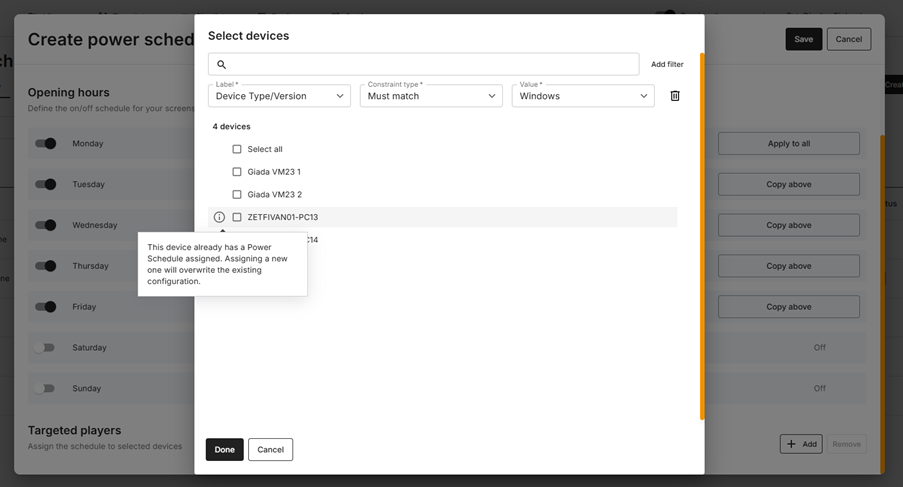
Choose which devices should use the Power Schedule.
You can:
- Select one or multiple devices
- Use Select All
- Search and filter devices
- Filter by Labels and Values
If a device is already assigned to another Power Schedule, it is clearly indicated.
You can still select the device, but you'll be informed that the existing Power Schedule will be replaced with the new assignment.
6. Connect any Special Day groups (optional).
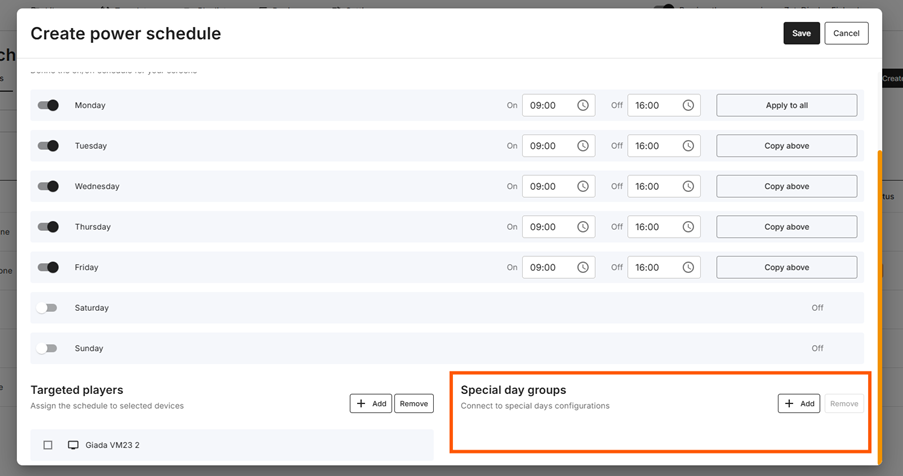
Special Day groups allow you to override the normal weekly schedule for holidays, events, or other exceptions.
While creating the schedule, you can:
- Search for Special Day groups
- Select multiple groups
- Use Select All
The selected groups are connected automatically when the Power Schedule is saved.
- Save the schedule.
When you save:
- The Power Schedule is created.
- Assigned devices begin using the new schedule immediately.
- Connected Special Day groups are linked to the schedule.
The new Power Schedule becomes available immediately and is applied to any assigned devices.
Use Override
Override Settings determine whether the weekly schedule should be ignored.
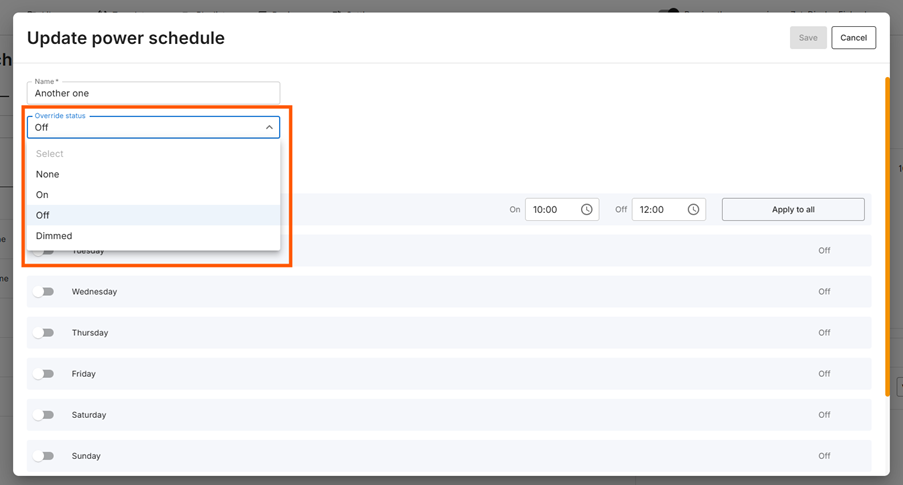
Available options include:
None
Uses the normal weekly schedule.
ON
Keeps the assigned devices powered on continuously.
OFF
Keeps the assigned devices powered off continuously.
Dimmed
Keeps the devices powered on while reducing the screen brightness.
Use Override Settings when you need a temporary or permanent state that should ignore the normal schedule.
Tips
- Use Override Settings when you need devices to remain permanently on or off.
- Use the weekly schedule for normal operating hours.
- Use Special Day groups to handle holidays or one-time events without changing your regular schedule.
- Use labels to quickly find and assign large groups of devices.
Common Questions
What happens if I assign a device that already has a Power Schedule?
The previous Power Schedule assignment is replaced. You'll be notified before the new assignment is applied.
Can I assign multiple devices at once?
Yes. You can select multiple devices or use Select All, which respects any active filters.
Can I reuse the same schedule for every weekday?
Yes. You can apply the same schedule to all days or copy the previous day's configuration.
What does the Override Setting do?
Override Settings ignore the normal weekly schedule.
- None follows the weekly schedule.
- ON keeps devices powered on.
- OFF keeps devices powered off.
- Dimmed reduces screen brightness while keeping the devices on.
What are Special Day groups?
Special Day groups define exceptions to your normal weekly schedule, making them ideal for holidays, store closures, or special events.