
Navigate the Engage CMS
In this guide you will learn:
- How to navigate and understand each section of the CMS menu
- How to switch between workspaces
- How to change your language preference and enable email notifications
The CMS Menu
The CMS menu provides access to the main areas of the Engage CMS: Library, Playlists, and Players.

Library
The Library is your digital storage space for organizing and managing media files and content.
You can organize content into folders, use search and filters to quickly find items, and control who can access them.
Playlists
A Playlist is a customized collection of content assigned to players.
You can arrange content in the desired order and schedule it for specific times and locations.
Players
Players represent the devices that display your content.
Organizing players allows you to efficiently manage scheduling and playback across your screens.
Workspace Selection
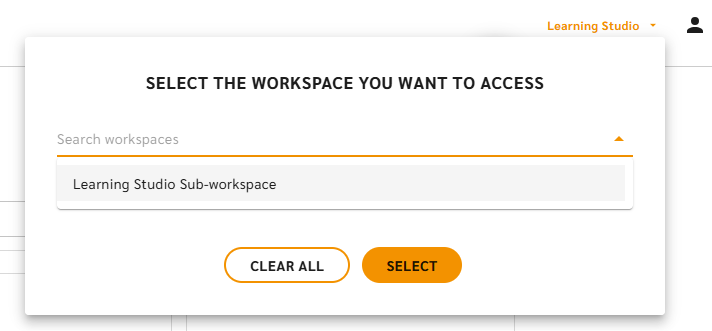
The workspace selector is located in the upper right corner next to your profile icon.
Click the down arrow to view and switch between the workspaces you have access to.
Profile Settings
Your profile icon is located in the upper right corner of the interface.
Click the icon to open the menu where you can:
- Open Profile Settings
- Sign out
In Profile Settings, depending on your user role, you can:
- Edit your name
- Enable email notifications when:
- a playlist status changes
- an empty schedule is detected
- Select your preferred system language

Filtering and Viewing Content
The Library, Playlists, and Players pages share several navigation and filtering tools that help you quickly locate content, folders, or devices.
While the general navigation works similarly across these pages, each section also includes filters specific to its purpose.
Common Navigation Tools
The following tools work similarly in the Library and Playlists sections.
Breadcrumb Navigation
The breadcrumb trail shows your current location in the folder structure.
Click any part of the breadcrumb to quickly return to a previous folder.

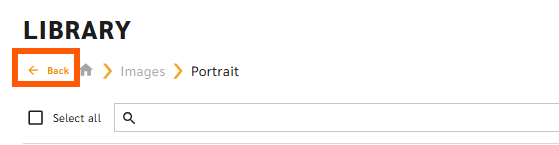
Back Button
The back arrow allows you to move one level up in the folder hierarchy.
Search
Use the search field to quickly find content or folders without browsing manually.
Search results can be filtered using the Type dropdown to display specific content types such as:
- Images
- Videos
- URLs
- Templates
- Audio files

Library Filters and Viewing Options
The Library includes additional tools for managing and organizing media content.
Bulk Actions
Select multiple items to perform actions such as:
- Move
- Schedule
- Delete

This allows you to manage several files at the same time.
Sorting Options
You can sort files in the Library by:
- Last Modified – Shows the most recently updated files first
- By Name – Sorts files alphabetically
- By Type – Groups files by format (for example images, videos, or templates)

View Modes
You can change how content appears in the Library.
- Grid View
Displays large thumbnails for quick visual previews. - Row View
Shows files in a detailed list with additional information.

Playlist Filters and Navigation
The Playlists section uses a similar folder navigation structure as the Library but includes filters related to playlist status.
Sorting by Playlist Status
Playlists can be filtered based on their current status:
- Disabled
The playlist is still being edited and has not been scheduled or assigned to a player. - Published
The playlist is active and currently assigned to a player. - Expired
The playlist has finished playing and no longer has an active schedule.

Player Filters and Viewing Options
The Players section allows you to filter and organize devices displaying your content.
Grid and List View
You can switch between two display modes:
- Grid View
Shows players as visual tiles with thumbnails. - List View
Displays players in a detailed table format.

Show Only Players
By default, both players and player groups are visible.
Enable Show only Players to hide groups and display only individual devices.

Search and Device Status Filters
Use the search field to find players based on their device status or location.

Possible statuses include:
- Online
The device is connected and functioning normally.
- Offline (<12 hours)
The device has lost connection for less than 12 hours.
- Offline (<24 hours)
The device has been offline for more than 12 hours but less than 24 hours.
- Offline (>24 hours)
The device has been offline for more than 24 hours. Immediate attention may be required.
- Idle
The device is expected to be temporarily offline. It will automatically switch to Online when the connection is restored.
- Unregistered
The device is a placeholder indicating that the physical hardware has not yet been connected.
- Restored
The player has been restored after being offline. A new registration code has been generated so a replacement device can be connected. If the original device reconnects, the player will automatically return to Online status.
Common Questions about CMS Navigation
How do I switch between workspaces?
Click the workspace selector in the upper right corner next to your profile icon.
Then select the workspace you want to open from the dropdown list.
Where can I change my language in the Engage CMS?
Open Profile Settings by clicking your profile icon in the upper right corner.
From there you can select your preferred system language.
What is the difference between the Library, Playlists, and Players?
- Library – Stores and organizes your media files and content.
- Playlists – Controls what content is shown and when it plays.
- Players – Represents the devices that display your content.
Why can't I find my playlist or content?
Use the search field or check the sorting and filtering options on the page.
Content may also be located in a different folder or filtered by status.