Dashboard Overview
You will learn how to understand device statuses (also called player status or screen status), navigate the network map, and quickly access recently modified playlists and templates.
The Dashboard provides a quick overview of the status of your devices and recent changes.
It helps users monitor device health, review recent changes, and navigate quickly to important content.

Feature Sections
Device Status
The Device Status pie chart shows the status of all players connected to the system.

Online
The device is connected and working normally.
Offline
The device has lost connection. The system displays how long the device has been offline.
Idle
The device is expected to be offline and will automatically return to Online when the connection is restored.
Unregistered
The device has not yet been connected to physical hardware.
Restored
The player has been restored after being offline. A new registration code has been generated so a replacement device can be connected. If the original device reconnects, the player will automatically switch back to Online.
View devices by status
- Open the Dashboard.
- Locate the Device Status chart.
- Click a status segment from the list.
- The device overview will open, filtered to show only devices with that status.
Network Map
The Network Map shows player locations on a map.
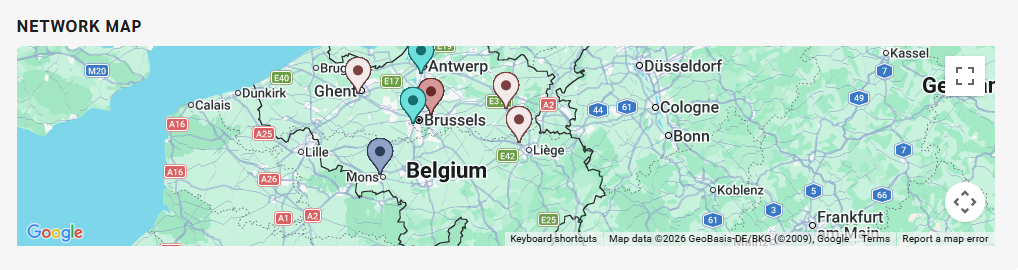
- Each pin represents a player.
- The color of the pin reflects the device status.
If no pins appear, player locations have not been configured.
Data Storage
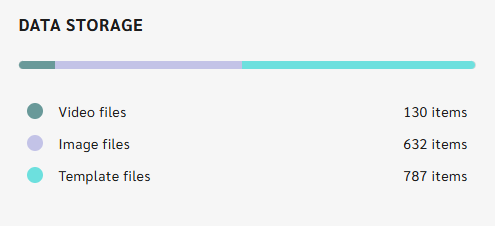
The Data Storage widget shows the total storage capacity available in the Engage CMS.
Breakdown:
- Movies: [Total count]
- Pictures: [Total count]
- Templates: [Total count]
Last Modified Playlists
The Last Modified Playlists list shows playlists that have recently been edited by you or your team.
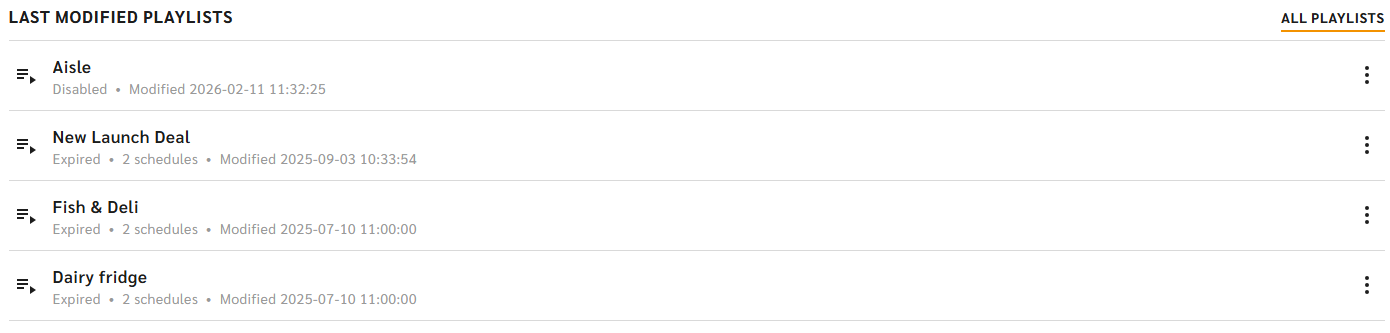
This widget helps you:
- quickly reopen frequently used playlists
- see recently updated content
Last Modified Templates
The Recent Template Modifications widget shows up to four recently edited templates.
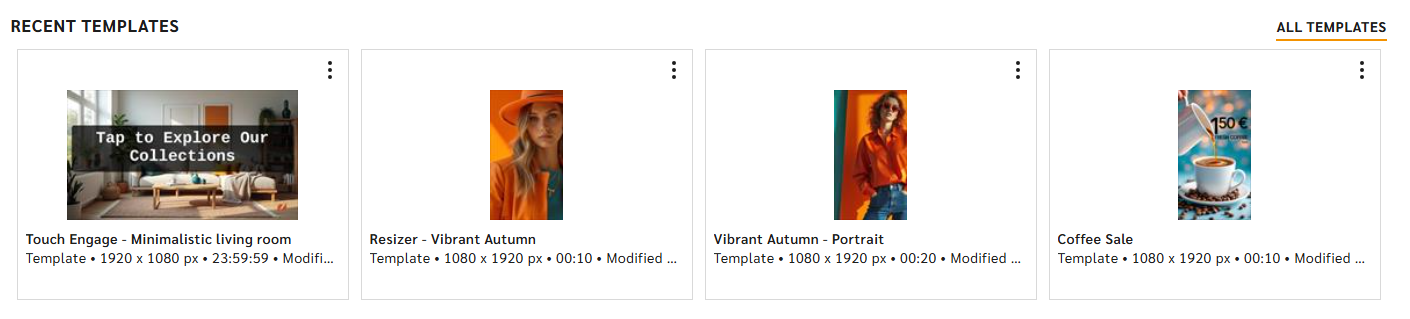
Click a template to open the Media Item Sidekick for more details.
To edit a template quickly:
- Click the three-dot menu
- Select Open in Content Creator
Click All Templates to open the full template library.
Common Questions About the Dashboard
What is the Dashboard used for?
The Dashboard provides a quick overview of the system, including device status, player locations, storage usage, and recently modified playlists or templates. It helps users monitor system activity and quickly access frequently used content.
Why don’t I see my device on the Network Map?
If your device is not visible on the Network Map, the player location may not have been configured yet. Once the location is set, the device will appear on the map.
What does the Device Status chart show?
The Device Status chart shows the current status of all available players (devices) connected to the Engage CMS. It helps you quickly understand whether your screens are online, offline, idle, or unregistered.
Why is my screen showing as offline?
If a screen appears as Offline, it means the device (player) has lost connection to the system. The dashboard will also show how long the device has been inactive. If the issue persists, contact Customer Care or check the device connection.
What does "Unregistered" mean in Device Status?
Unregistered indicates that the device has not yet been connected to physical hardware. The device is waiting to be paired with a screen or player.
Why is my device showing as Idle?
A device showing Idle means it is expected to be offline. This can happen when the device is intentionally not connected. Once the device reconnects, its status will automatically change to Online.
What does restored mean? / Why is my player restored?
Restored status indicates that a player has been reset to allow a new device to connect using a new registration code.
How do I quickly reopen recently edited playlists?
You can reopen recently edited playlists from the Last Modified Playlists widget on the Dashboard. Click the playlist name to open it directly.