
Engage Navigation Overview
The Engage CMS is designed to help you manage content, playlists, devices, templates, and settings from a single platform.
Whether you are creating content, assigning playlists, or managing screens, the navigation tools help you quickly move between different areas of the system.
In this article, you will learn:
- How the navigation is organized
- How to switch between workspaces
- How to find content using search, filters, and sorting tools.
New to Engage?
A common workflow is:
- Upload content to the Library
- Create a Playlist
- Assign the Playlist to Players
The navigation helps you move between these areas as you work.
Finding Your Way Around the Engage CMS
The navigation consists of four main areas:
- Top navigation
- Side navigation
- Content area
- Split View

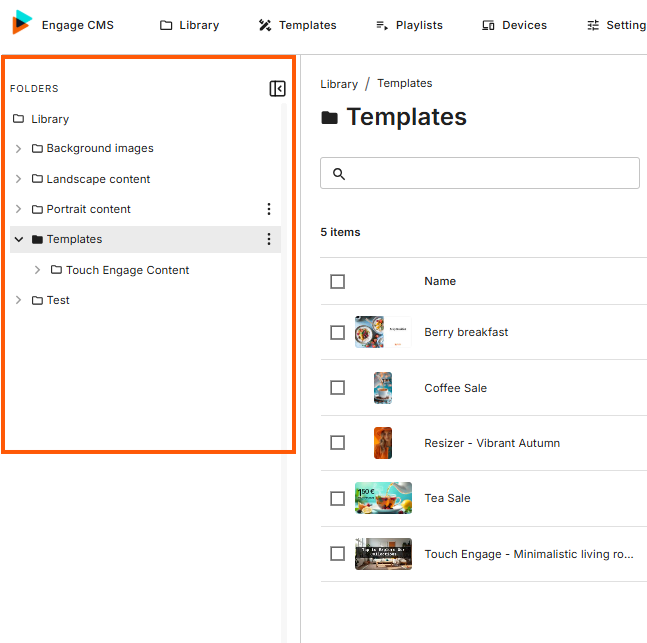
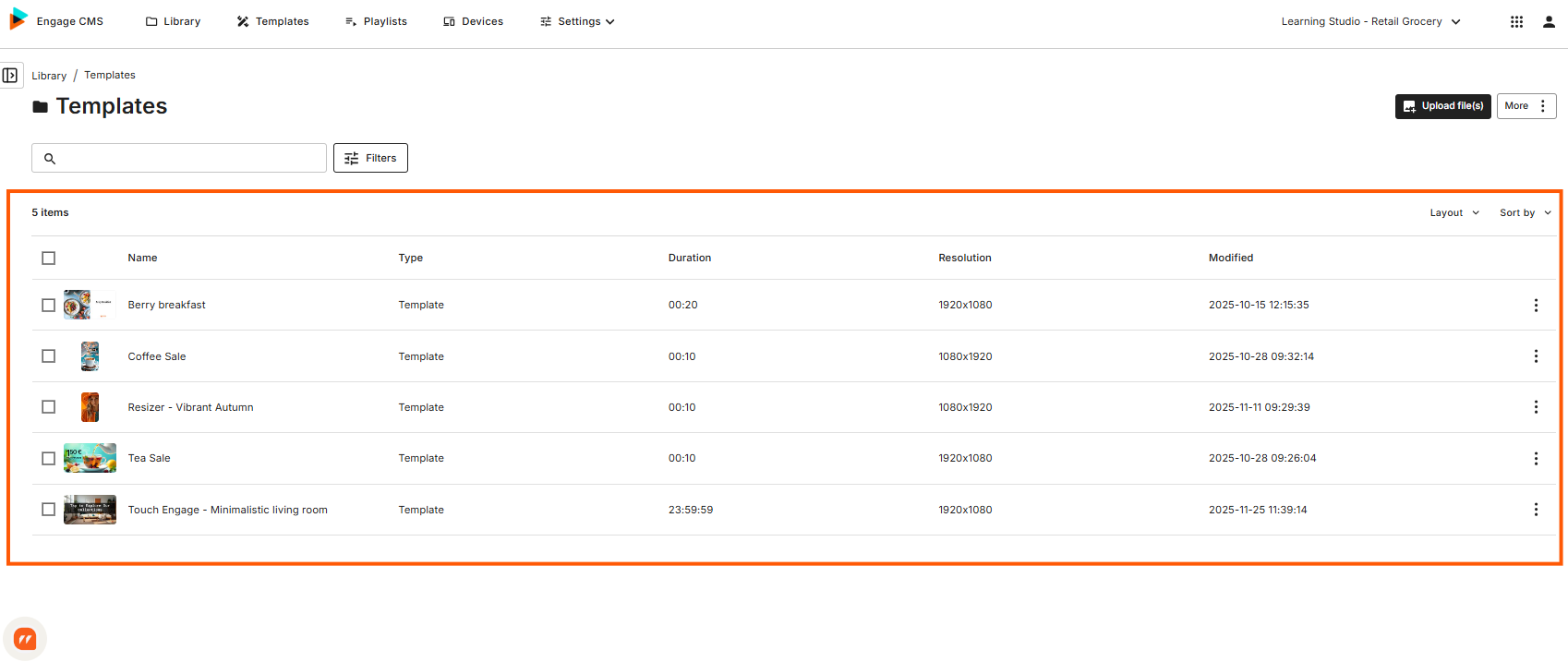
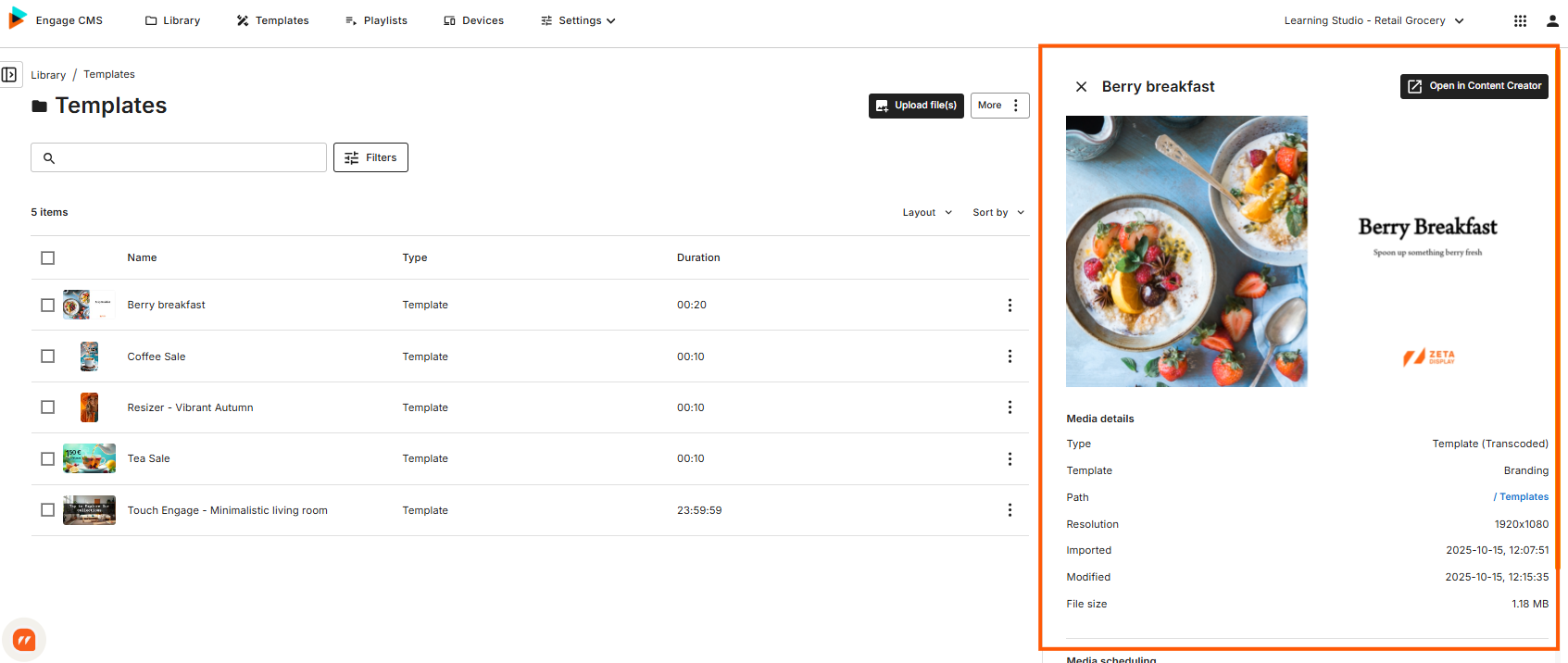
Together these areas help you move between workspaces, access features, and manage your content.
Main Navigation
The main navigation is available throughout the Engage CMS.
Library
The Library is your digital storage space for organizing and managing media files and content.
You can organize content into folders, use search and filters to quickly find items, and control who can access them.
Templates
The Template Library provides access to all templates available in your workspace.
Templates are pre-designed content layouts that help you create professional content while following your organization's branding guidelines. They can include predefined colors, logos, fonts, layouts, and design elements.
Playlists
A Playlist is a customized collection of content assigned to players.
You can arrange content in the desired order and schedule it for specific times and locations.
Devices
Devices (could also be called players or screens) is the hardware which you target your playlist with to a physical screen or location. Making your content be able to be experienced.
Settings
The settings item in the menu is where you can access your devices Power Schedules and Lables.
Power Schedules
Power Scheduling allows you to control when devices (players/screens) turn on and off automatically.
Labels
Labels help categorize and organize players based on their location, function, or other relevant attributes.
Workspace Selector
The Workspace Selector allows you to switch between workspaces.
Select the workspace name in the navigation ribbon to open the workspace.
Depending on your permissions, you may:
- Browse available workspaces
- Search for a workspace
- Navigate between parent and sub-workspaces using the breadcrumb navigation
Different workspaces may contain different content, playlists, devices, and settings.
User Options
The User Options menu provides access to account settings, Smart Guides, and sign-out options.
You can:
- Change your language
- Manage notification preferences
- Open Smart Guides
- Sign out
Help & Guides
Is where you can access the Smart Guides modal.
Open Smart Guides to access:
- Product guides and articles
- Interactive tours
- News and updates about Engage
- Additional learning resources
Sign out
Sign out from the Engage Suite and end your session.
Side Navigation
The Side Navigation provides an overview of folders and groups within a selected page.
The contents of the navigation change depending on where you are:
- Library – Content folders
- Playlists – Playlist folders
- Devices – Device groups
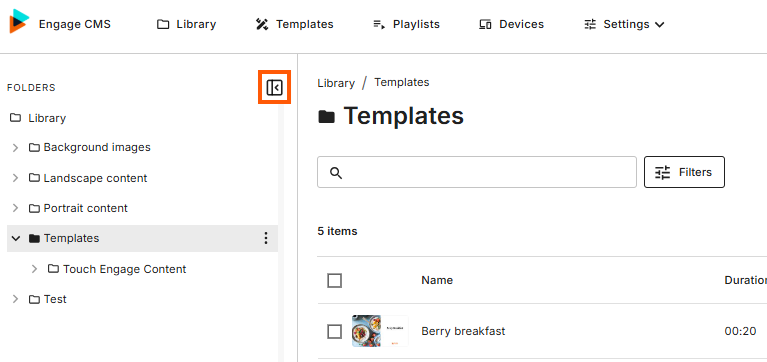
The navigation can be collapsed or expanded to provide more workspace in the content area.
Working Across Workspaces
Workspaces help separate content, devices, playlists, and settings.
Organizations often use workspaces to separate:
- Departments
- Locations
- Brands
- Customers
If you have access to multiple workspaces, use the workspace selector to switch between them.
Finding Content Faster
Most pages include tools that help you quickly find what your looking for.
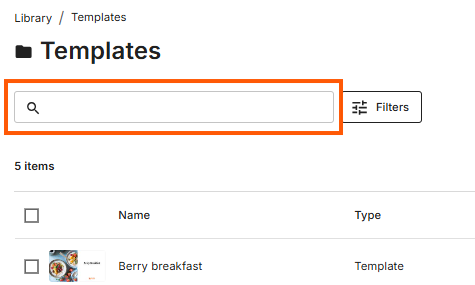
Search
Use search to locate files, playlists, folders, or devices.
Filters
Filters allow you to narrow results based on available criteria.
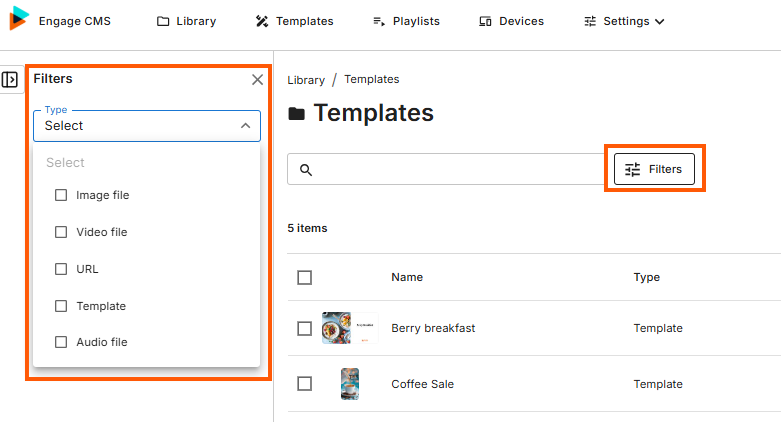
The available filters vary depending on which page you are currently viewing.
Sorting
Sorting changes how results are displayed.
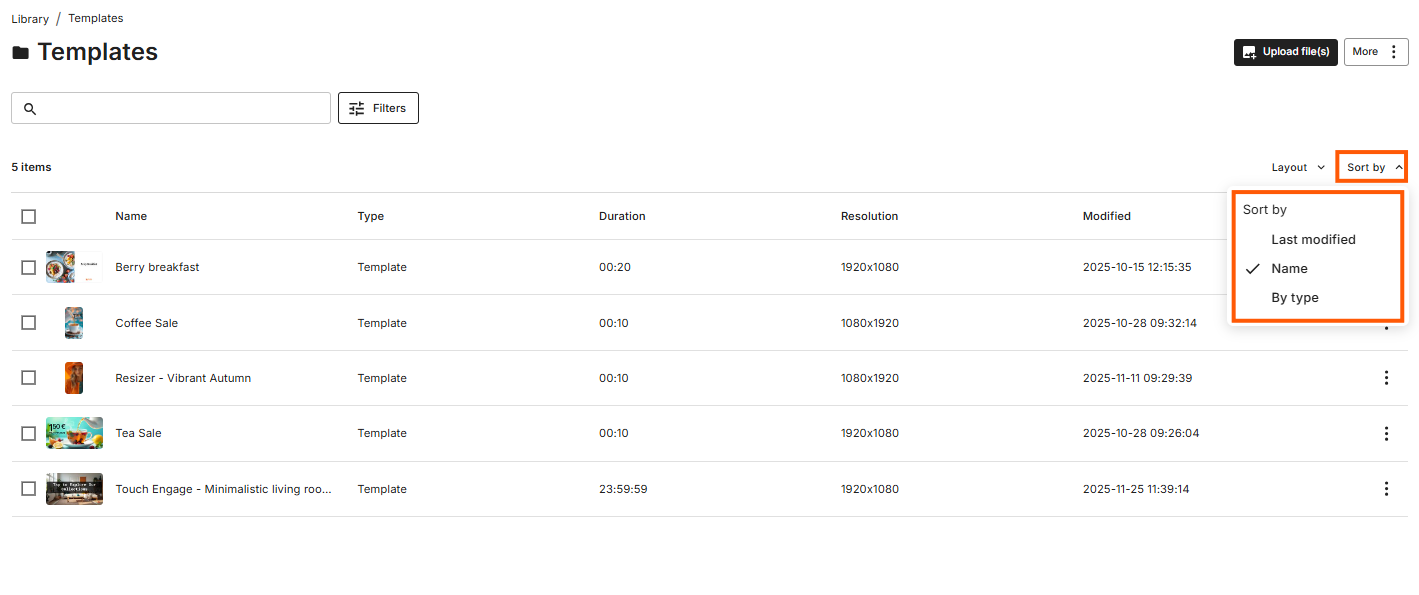
Common sorting options:
- Name
- Last Modified
- Type
- Status
Additional Navigation Tools
Some page areas include additional navigation features.
Breadcrumb Navigation
Breadcrumbs show your current location within a folder structure.
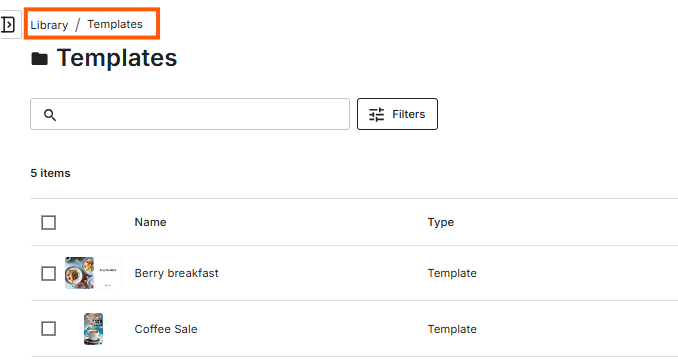
Select any level in the breadcrumb trail to return directly to that location.
Bulk Actions
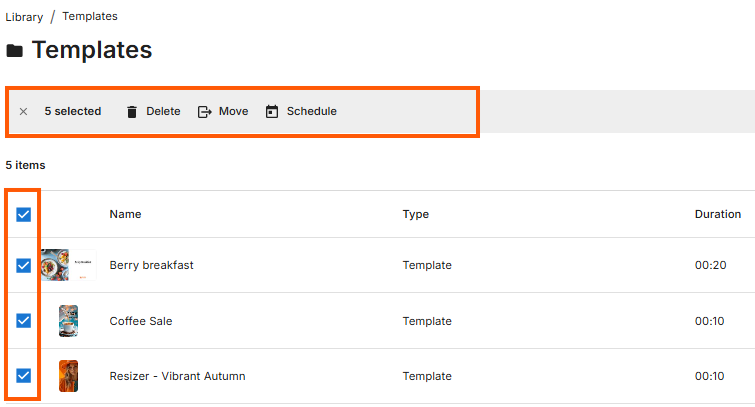
Some areas allow actions on multiple items at once, such as:
- Move
- Schedule
- Delete
Split View
The Split View opens when you select an item and gives you access to more detailed information, settings and management options without leaving the current page.
What you can see and do in the Split View depends on where you are in Engage CMS.
Library
Select an item in the Library to view:
- Media details
- Current schedules
- Playlists where the media is being used
Templates
Select a Template to view:
- Template details
- Where the Template is being used
- Options to create new content from the Template using Content Creator
Playlists
Select a Playlist to view its information and access options for managing the Playlist.
From the Split View, you can:
- View Playlist information
- View and edit Playlist content
- Open Playlist Settings using the cogwheel
- Schedule and assign the Playlist
- Manage playback behaviour
Devices
Select a Device to view more information about it, including the Playlists currently playing or assigned to the Device.
You can also access Remote Control for additional Device information and available remote actions, such as Reboot.
Using the Split View
Across Engage CMS, the Split View follows the same general principle: select an item to see more information and access the options available for managing it.
This allows you to work with Library content, Templates, Playlists and Devices while remaining on the current overview page.
Common Questions about Navigating the Engage CMS
How do I switch between workspaces?
Select the workspace name in the navigation ribbon to open the Workspace Selector.
From there, you can browse available workspaces, search for a specific workspace, or navigate between parent and sub-workspaces.
Where can I change my language?
Open the User Options menu and select Profile Settings.
From there, you can choose your preferred system language and manage available notification settings.
What is the difference between the Library, Playlists, and Devices?
Library – Stores and organizes your media files and content.
Playlists – Controls what content is displayed and when it should play.
Devices – Represents the screens or players that display your content.
What is the difference between the Library and Templates?
Previously, templates were accessed through the Library. In the updated UI, Templates have their own dedicated area in the navigation.
Library is used to store and organize media files such as images, videos, audio files, and documents.
Templates contains reusable layouts and content designs that help create consistent content across screens and locations.
Separating Templates from the Library makes it easier to distinguish between:
- The content you use
- The layouts used to present that content
What is the Product Switcher used for?
The Product Switcher allows you to move between available products within the Engage Suite.
Depending on your permissions, you may have access to products such as Engage CMS, Admin Panel, or Content Creator.
What is the difference between a workspace and a folder?
A workspace separates content, playlists, devices, and settings from other workspaces.
Folders are used to organize content, playlists, or devices within a workspace.
Why can't I find my content, playlist, or device?
Use the search field, filters, and sorting options available on the page.
If you still cannot find the item, verify that:
- You are in the correct workspace
- The item is not located in another folder or device group
- Active filters are not hiding the item
Where can I find guides and tutorials?
Open Help & Guides from the User Options menu.
From there, you can access Smart Guides articles, interactive tours, product updates, and additional learning resources.