
Device Overview
Devices represent the screens and players in your digital signage network that display your content.
The Devices page in Engage CMS gives you an overview of your network, including Device status, organisation, assigned Playlists and other important Device information.
From here, you can select a Device to open the Split View, access Device settings and use Remote Control options for additional information and remote actions.
Device Status
The Device status helps you quickly understand whether a Device is connected and operating as expected.
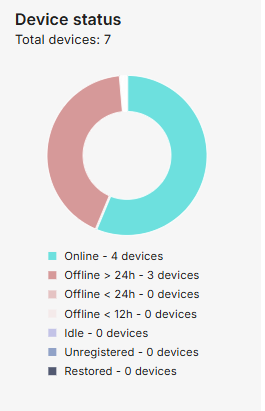
Online
The Device is connected and operating normally.
Offline <12 hours
The Device has lost its connection for less than 12 hours.
If the Device remains offline, further investigation may be needed.
Offline <24 hours
The Device has been offline for more than 12 hours but less than 24 hours.
Offline >24 hours
The Device has been offline for more than 24 hours and may require attention.
Idle
The Device is expected to be temporarily offline.
When the connection is restored, the Device will automatically return to Online.
Unregistered
The Device has been created in Engage CMS, but the physical Device has not yet been registered or connected.
View and Organise Devices
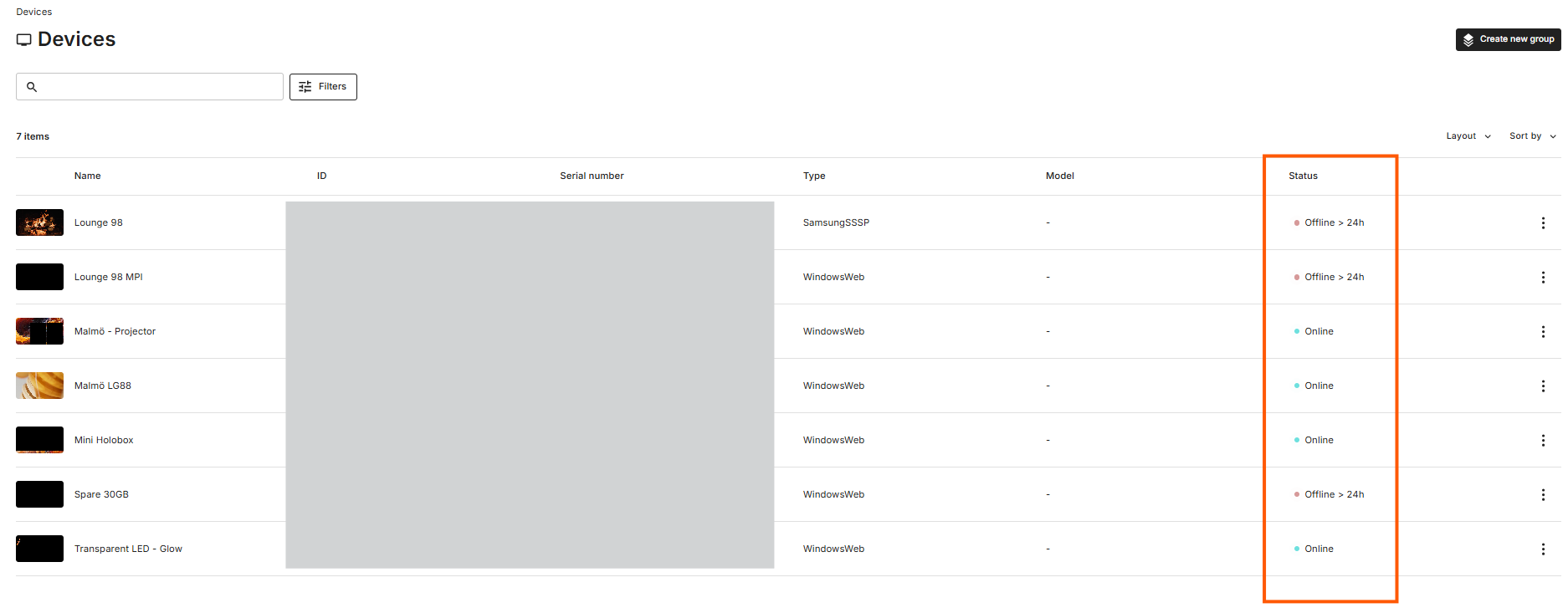
The Devices page provides an overview of the Devices available in your current Workspace.
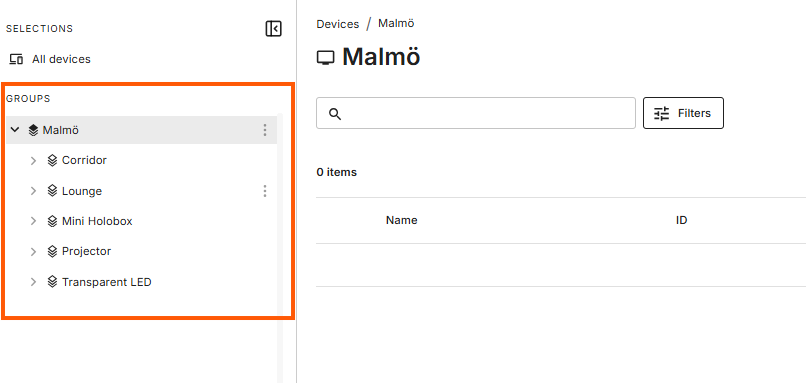
Devices can be organised into Device Groups, helping you manage larger digital signage networks and find the Devices you need.
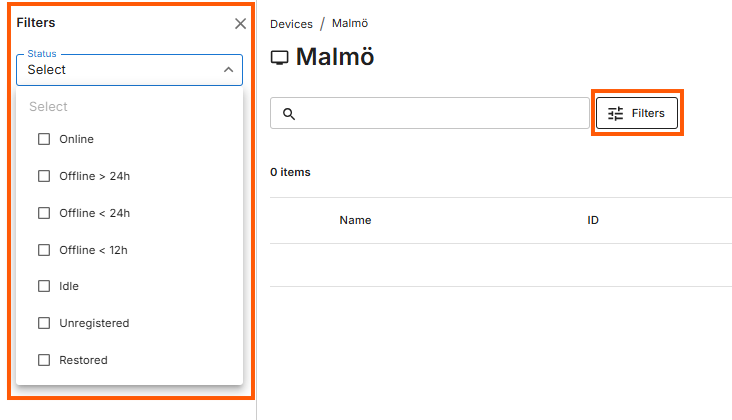
You can also use search, filters, Labels and Values to narrow down the Devices displayed in the overview.
Device Split View
Select a Device to open its Split View.
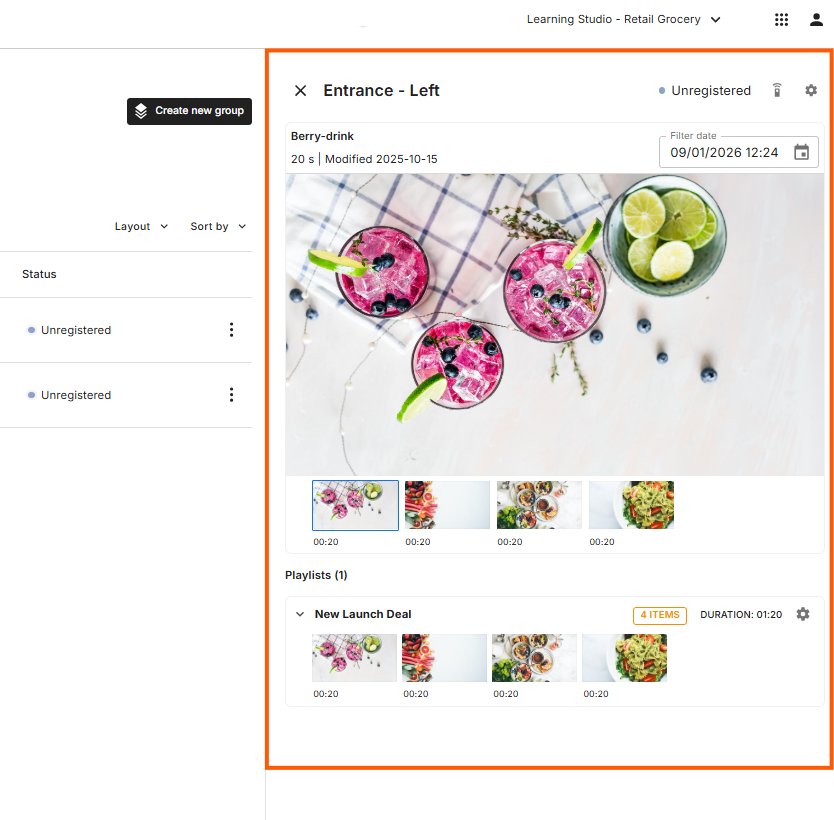
The Split View provides more detailed information and access to the management options available for the selected Device without leaving the Devices overview.
From here, you can view information such as:
- Playlists currently playing on the Device
- Playlists assigned to the Device
- Device information
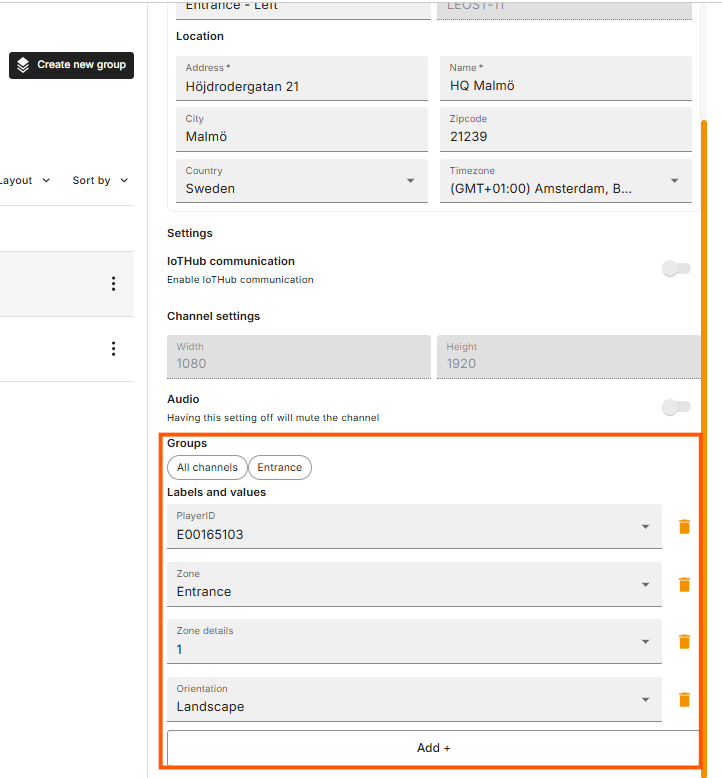
- Device Groups, Labels and Values
You can also access additional Device settings and Remote Control options.
Preview Scheduled Content
From the Device Split View, you can review the content expected to play on the selected Device.
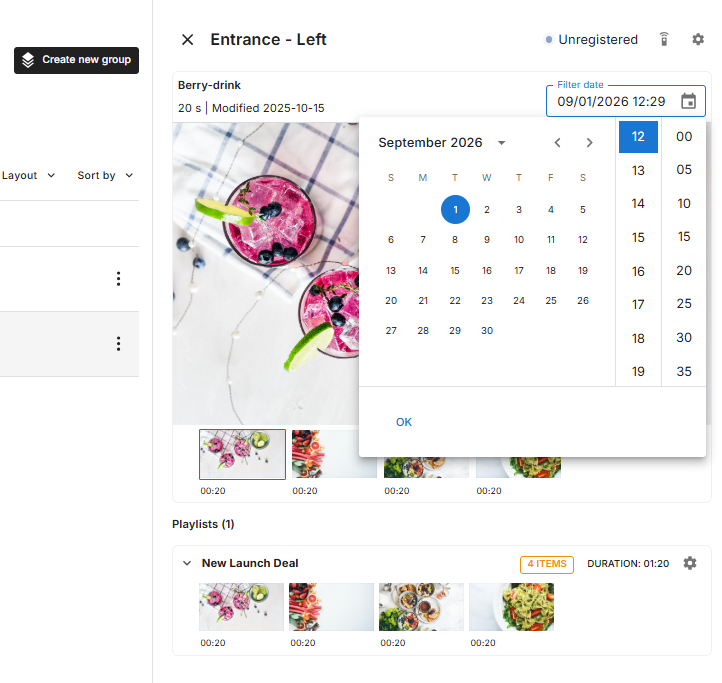
Select a date and time to view the expected content schedule for that period.
You can also select individual media items to preview the content and its playback order.
The preview is for reference only. Using the preview does not change what is currently displayed on the physical screen.
Device Settings
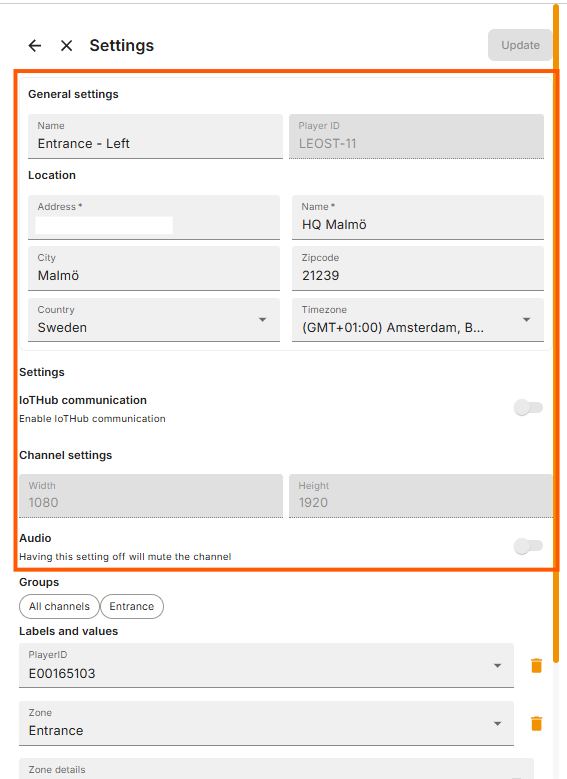
Open the Device settings using the cogwheel.
Depending on your permissions, you can manage information and settings such as:
- Device name
- Address or location
- Audio
- Device Groups
- Labels and Values
The options available to you may depend on your user permissions and the Workspace you are currently using.
Labels and Values
Labels help you classify Devices using information such as location, department, function or screen type.
A Device can have multiple Labels and Values, making it easier to organise, filter and target Devices across your network.
For example:
Label: Zone
Value: Entrance
Label assignments can be viewed and managed from the Device settings.
To create or manage Labels and their Values, open Settings → Labels.
Remote Control
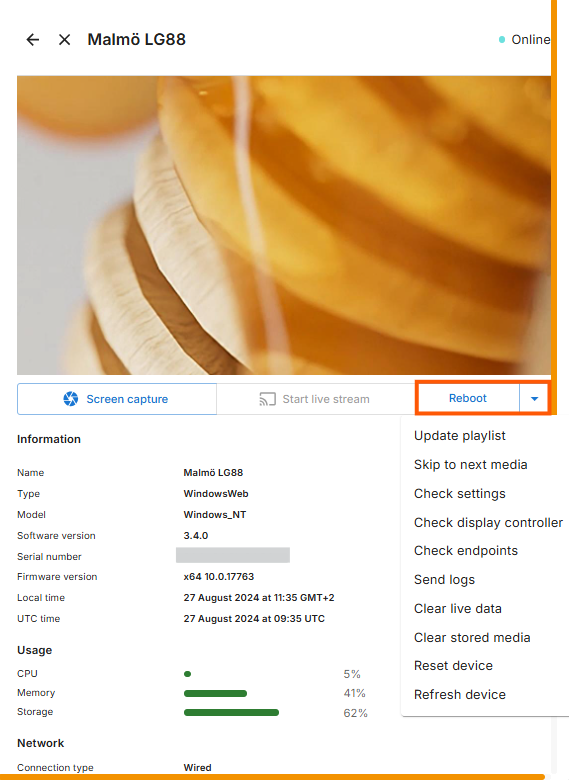
Select Remote Control from the Device Split View to access additional Device information, monitoring tools and remote actions.
The available options may depend on the Device and your user permissions.
Device Information
Remote Control provides additional technical information about the selected Device, which may include:
- Device name
- Device type and model
- Software and firmware versions
- Network information
- Connectivity status
- Device health information, such as CPU and memory usage
This information can be useful when monitoring or troubleshooting a Device.
Screen Capture
Request a screen capture to see what the Device is currently displaying.
This can help you confirm whether the expected content is visible on the screen or investigate a playback issue.
Live Stream
Start a live stream to monitor the Device display in real time.
Reboot
Use Reboot to remotely restart the Device.
You will be asked to confirm the action before the Device is rebooted.
Additional Remote Actions
Additional troubleshooting and management actions are available from the Remote Control options.
Depending on the Device and your permissions, these may include:
- Update Playlist
- Skip to Next Media
- Check Settings
- Check Display Controller
- Check Endpoints
- Send Logs
- Clear Live Data
- Clear Stored Media
- Reset Device
Some of these actions can affect Device operation or stored information and should only be used when necessary.
Device Groups
Device Groups work as folders for organising Devices within Engage CMS.
Groups can help you structure larger networks based on how your organisation manages its Devices, such as by location or another organisational structure.
A Device Group can contain multiple Devices, making it easier to navigate and manage your network.
Common Questions
What is a Device in Engage CMS?
A Device represents a player or screen within your digital signage network.
The Devices page allows you to monitor and manage the Devices available within your Workspace.
How do I know if a Device is connected?
Check its Device Status.
An Online status indicates that the Device is connected and operating normally. Offline statuses show how long the Device has been disconnected.
What does Unregistered mean?
Unregistered means the Device exists in Engage CMS, but the physical Device has not yet been registered or connected.
Where can I see which Playlists are assigned to a Device?
Select the Device to open the Split View.
From here, you can see the Playlists assigned to the Device as well as information about what is currently scheduled or playing.
Can I see what should be playing on a Device?
Yes. From the Split View, you can select a date and time to preview the content expected to play on the Device.
The preview does not affect playback on the physical screen.
Can I restart a Device remotely?
Yes, if you have the required permissions and the Device supports the action.
Open Remote Control and select Reboot. You will be asked to confirm before the Device is restarted.
What is the difference between a Device Group and a Label?
A Device Group works like a folder and provides a structural way to organise Devices.
A Label classifies Devices using reusable information and Values, such as Region: South or Zone: Entrance.
Devices can use Labels in addition to being organised into Device Groups.
Why can't I access some Device settings or Remote Control actions?
The features and actions available to you can depend on your user permissions, Workspace access and the selected Device.