
Library Overview
The Library is your central storage space in Engage CMS where you manage all media content.
You can organize content into folders, search for files quickly, and control how content is used across playlists and devices (also called screens or players).
In this article, you will learn how to organize files, use search and filters, upload content, and manage how media is used in playlists.
Content area & Folders
Content area
- Folders appear first, sorted alphabetically
- Files appear after, also sorted alphabetically
Local Folder
- Local folders exist only within your current workspace.
Shared Folder (Sending)
A folder shared from your workspace to another workspace.
- You can manage it like a local folder
- Recipients can use the content in playlists or templates
- Recipients cannot upload, edit, or delete files
Note:
Shared content can only play during its original scheduled time.
Shared Folder (Receiving)
A folder shared with your workspace from another workspace.
- You cannot upload, edit, or delete files
- You can use the content in playlists and templates
Note
If a shared file is scheduled to play on Wednesdays, it will not play if scheduled for another day.
How to Use the Library
Uploading Files
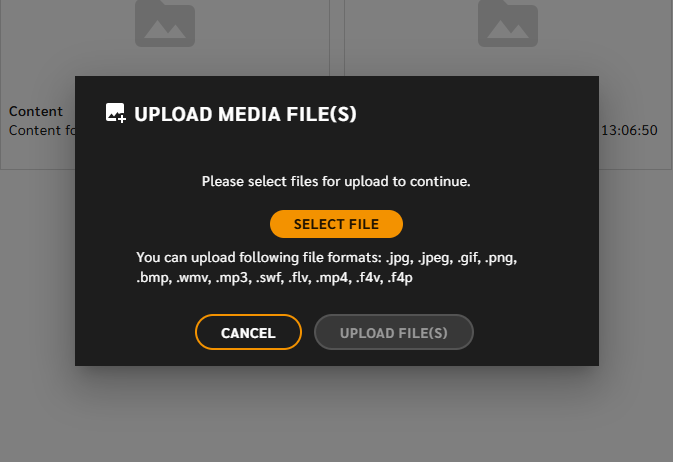
To upload files:
- Click Upload file(s)
- Select one or more files
- Review the files
- Click Upload file(s) to confirm
Supported formats include:
.jpg, .jpeg, .gif, .png, .bmp, .mp3, .swf, .flv, .mp4, .f4v, .f4p
Handle Duplicate Files
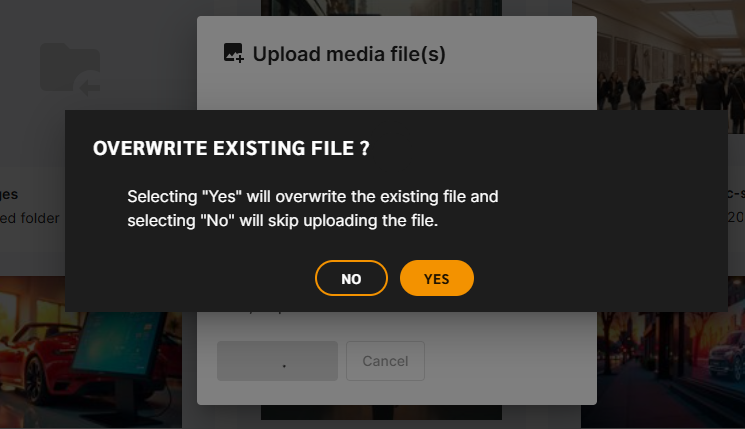
If a file already exists:
- Click "Yes" to overwrite: Replace the existing file
- Click "No" to skip: Keep the existing file
If the file is used in a playlist, overwriting updates the content without changing the schedule.
Create a New Folder
- Click More → Create new folder
- Enter a name
- Click Create
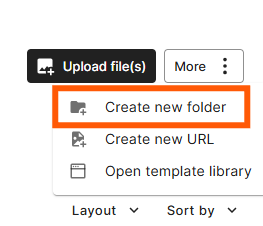
The folder will be created in your current location.
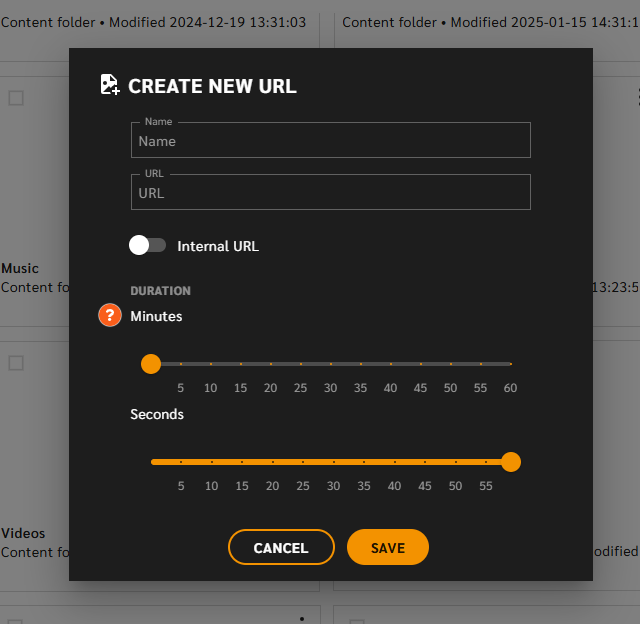
Create URL Content
URL content allows you to display web pages on a player (screen/device).
Examples:
- News
- Social media
- Weather
- Internal pages
Add a URL
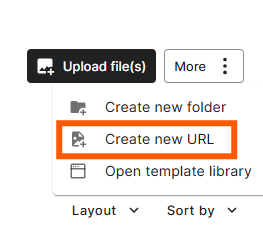
- Click More → Create new URL
- Enter a name
- Paste the URL
- Set options (optional)
- If the URL is internal
- The duration: How long it will show/play
- Click Save
Changes to the URL will automatically update on the player.
Library Actions
Library Actions
You can manage files and folders using the three-dot menu.
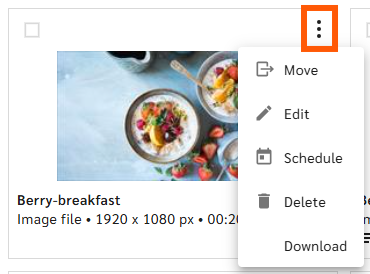
Move
Move files or folders to another location.
Edit
Edit file duration or rename files.
Schedule
Schedule a file to play at a specific time within a playlist.
Important:
Changes affect all playlists using that file.
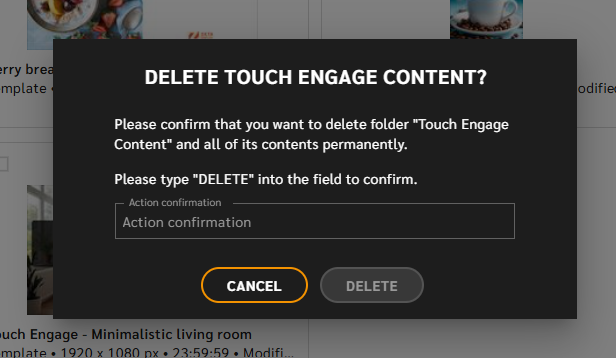
Delete
You can delete media files or folders.
- If a file is used in playlists, you must review those playlists
- Files must exist in the Library if used in playlists
Shared content cannot be deleted.
Download
Download images and videos to your device.
Share folder
Only folders can be shared with other workspaces.
Library Sidekick
When selecting a media file, the Sidekick displays detailed information.
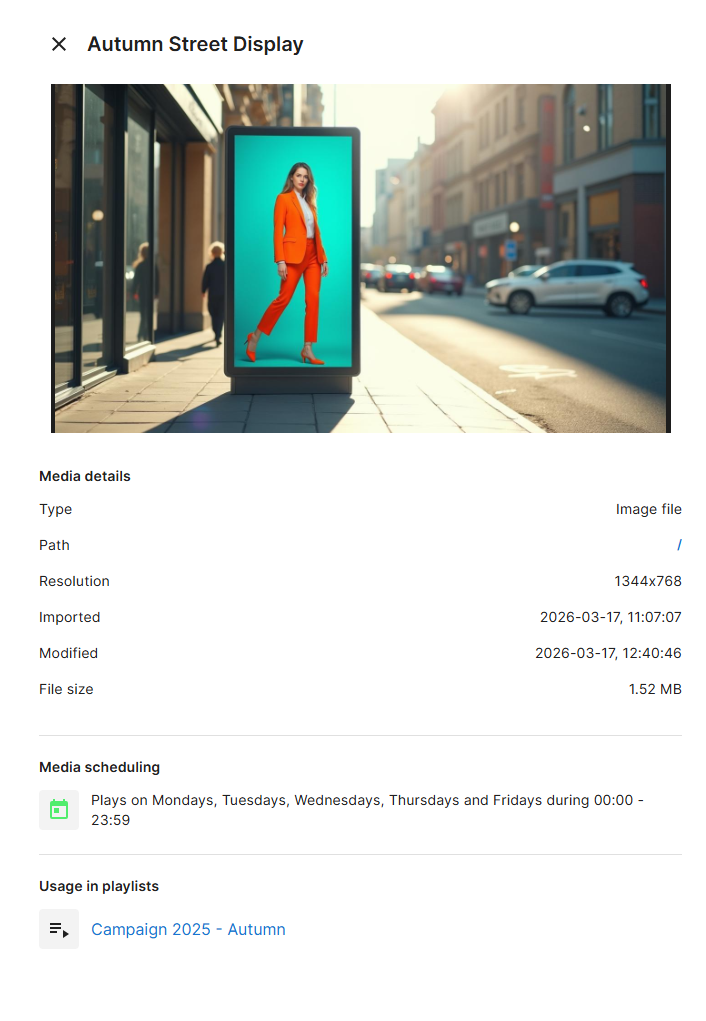
Media Details
- Type
- Path (clickable)
- Resolution
- Imported date
- Modified date
- File size
- Media scheduling
- Playlist usage
Clicking a playlist opens it without leaving the Library.
Common questions about the Library
What is the Library in Engage CMS?
The Library is where all media content is stored and managed, including images, videos, templates, and URLs.
How do I find a file quickly?
Use the search field or filter results by file type. You can also navigate using folders or breadcrumbs.
Why can't I edit or delete a file?
The file may be located in a shared folder or you may not have the required permissions.
What happens if I overwrite a file?
The file will update everywhere it is used, including in playlists, without changing the schedule.
Why is my content not showing on the screen?
The file may be scheduled outside its allowed time, especially if it comes from a shared folder.
Can I upload multiple files at once?
Yes. You can select and upload multiple files in one upload action.
Why can't I move or delete shared content?
Shared content has restricted permissions. You can use it, but not modify or remove it.
Where is my file located?
Open the file and check the Path in the Sidekick. You can click it to navigate directly to its folder.