
Playlists Overview
Playlists control what content is shown, where it is displayed and when it should play across your digital signage network.
The Playlists page gives you an overview of the Playlists available in your current Workspace and provides access to their content, schedules, assigned Devices and playback settings.
What is a Playlist?
A Playlist is a collection of content that you want to display on one or more Devices.
A Playlist can contain different types of content, such as:
- Images
- Videos
- Template content
- URLs
Content can be arranged in the order you want it to play. The Playlist can then be scheduled and assigned to the Devices where it should be displayed.
A simple way to think about it is:
Content → Playlist → Schedule → Device
Playlist Overview Page
The Playlists page displays the Playlists available in your current Workspace.
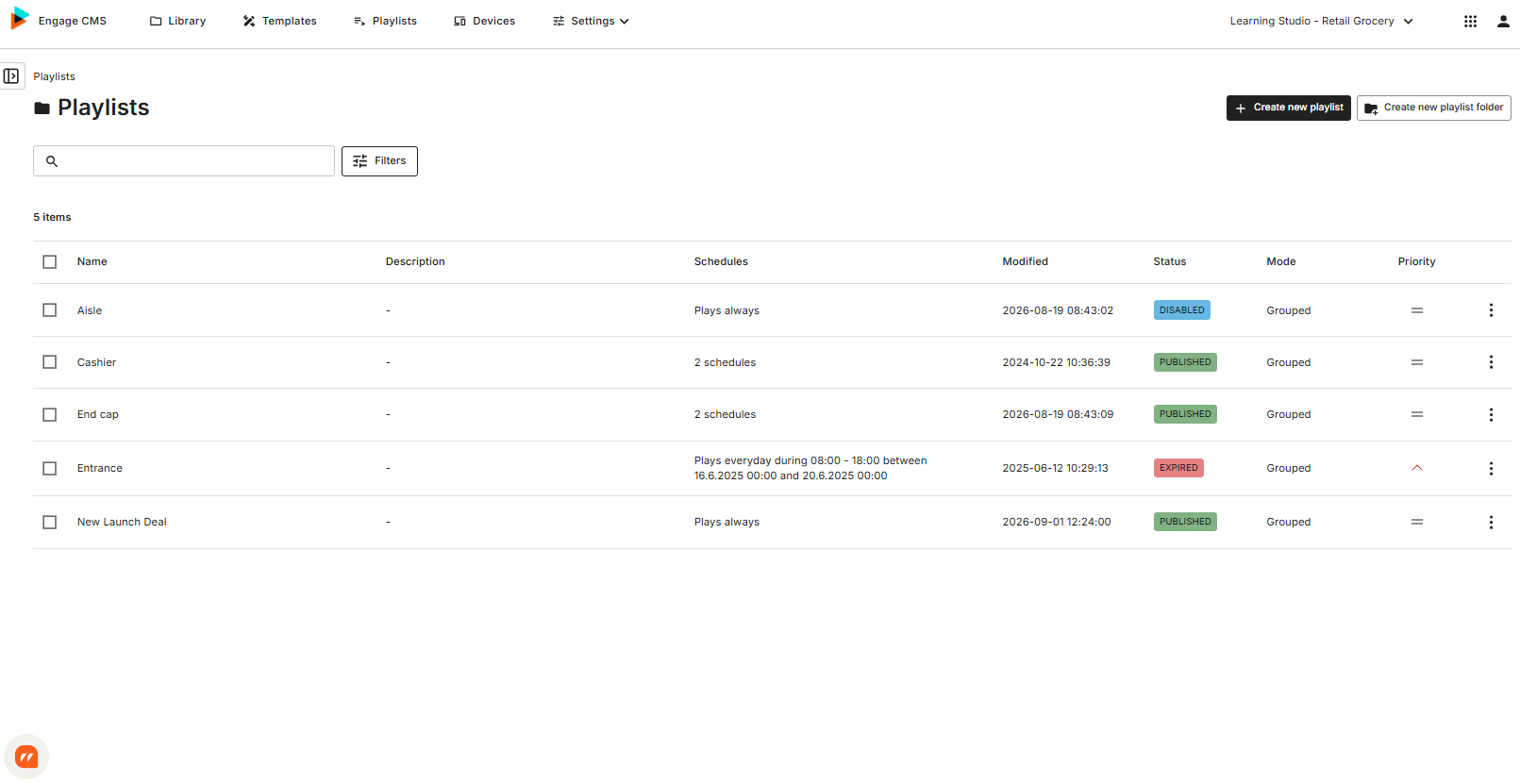
The overview provides important information about each Playlist, helping you understand its current configuration without having to open it.
Depending on the available features, this can include information such as:
- Playlist status
- Playlist mode
- Playlist priority
- Scheduling information
Select a Playlist to open its Split View and access more detailed information and management options.
Playlist Status
The Playlist status helps you understand its current state.
Published
The Playlist has been published and can play according to its configured schedule and Device assignments.
Expired
The Playlist has passed its configured end date and is no longer active.
Expired Playlists remain available in Engage CMS so they can still be reviewed or managed.
Promoted
The Playlist has been submitted and is waiting for approval before it can be published.
The statuses available to you may depend on your organisation's configuration and workflow.
Playlist Split View
Select a Playlist to open the Split View.
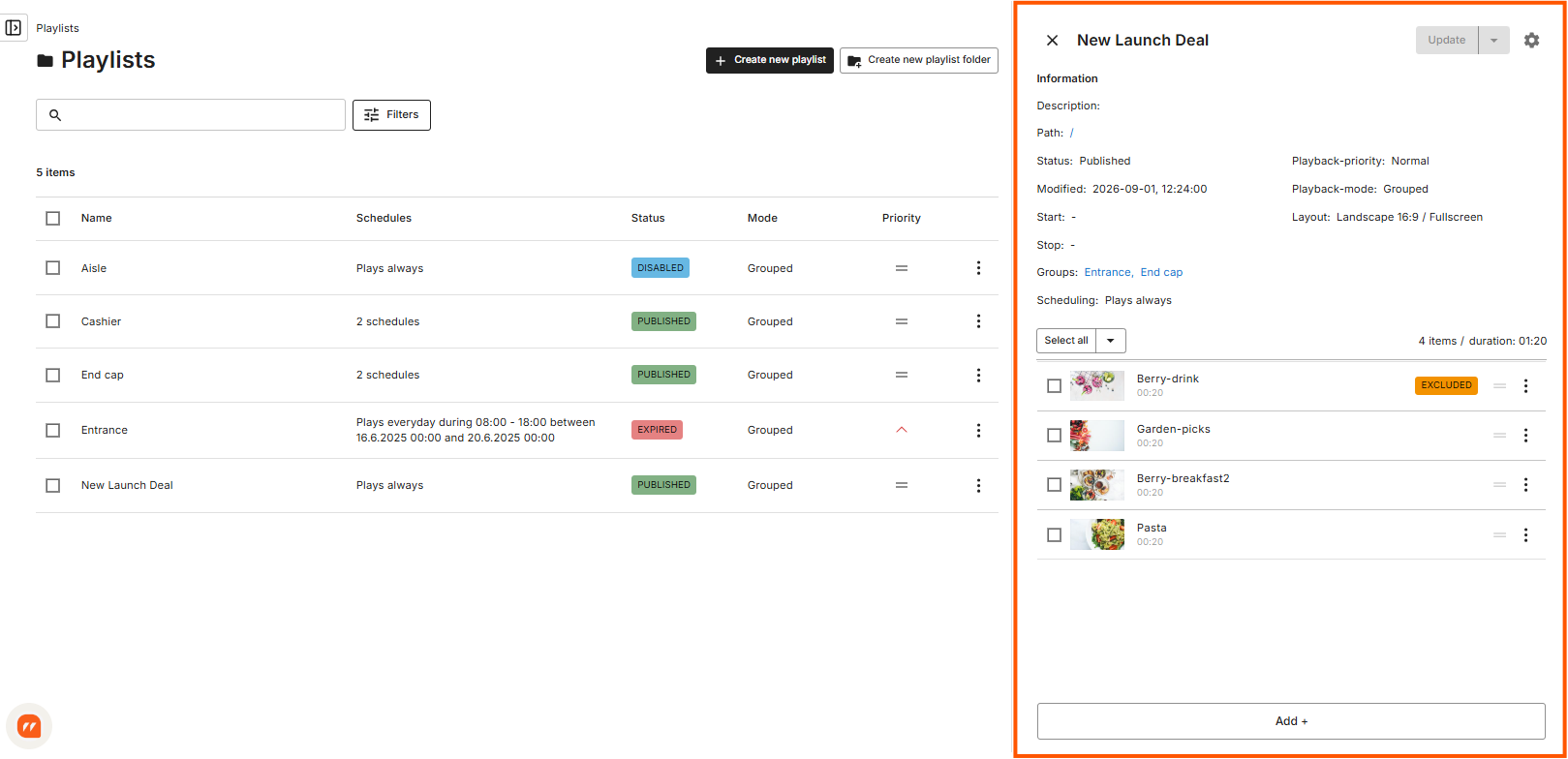
The Split View provides more detailed information and access to the management options for the selected Playlist without leaving the Playlist overview.
From here, you can:
- View Playlist information
- View and manage Playlist content
- See scheduling and targeting information
- Open Playlist Settings
- Edit the Playlist
The path also shows where the Playlist is located within the current Workspace.
Playlist Content
A Playlist contains one or more media items from your Library.
When editing a Playlist, you can add content from the Library, upload new content and arrange media in the order it should play.
Content can be rearranged using drag-and-drop.
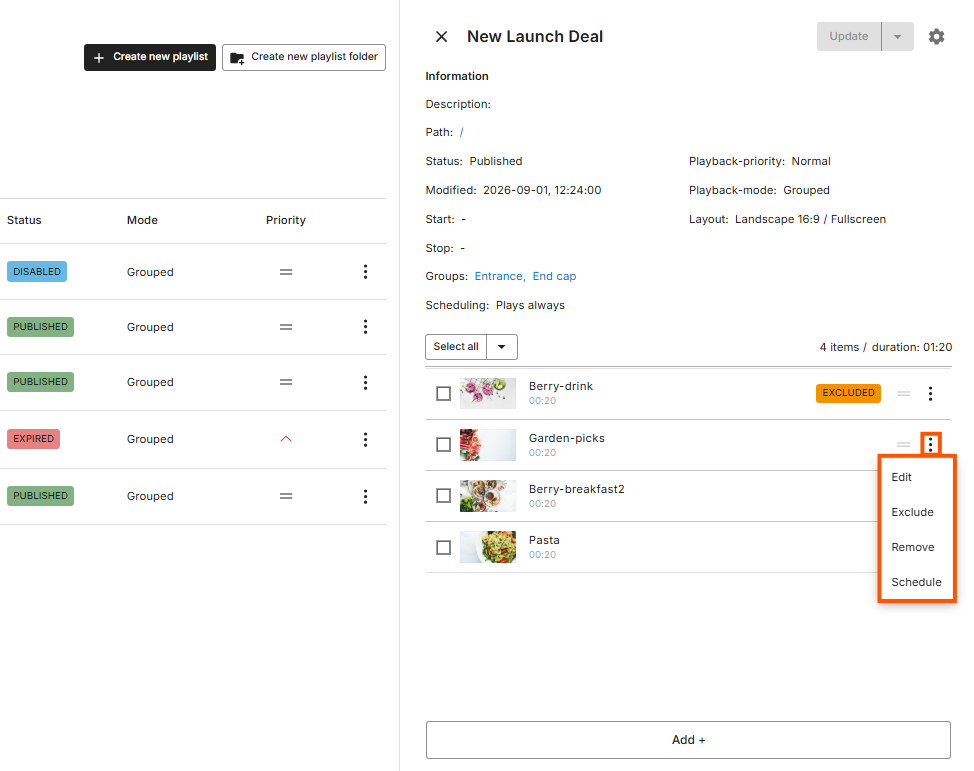
Depending on the content type and available features, individual items may also have additional options such as:
- Edit media
- Change display duration
- Schedule content
- Exclude content from specific Devices
Changes made directly to a Library item may also affect other Playlists using the same item.
Scheduling a Playlist
Playlist scheduling determines when the Playlist should be active.
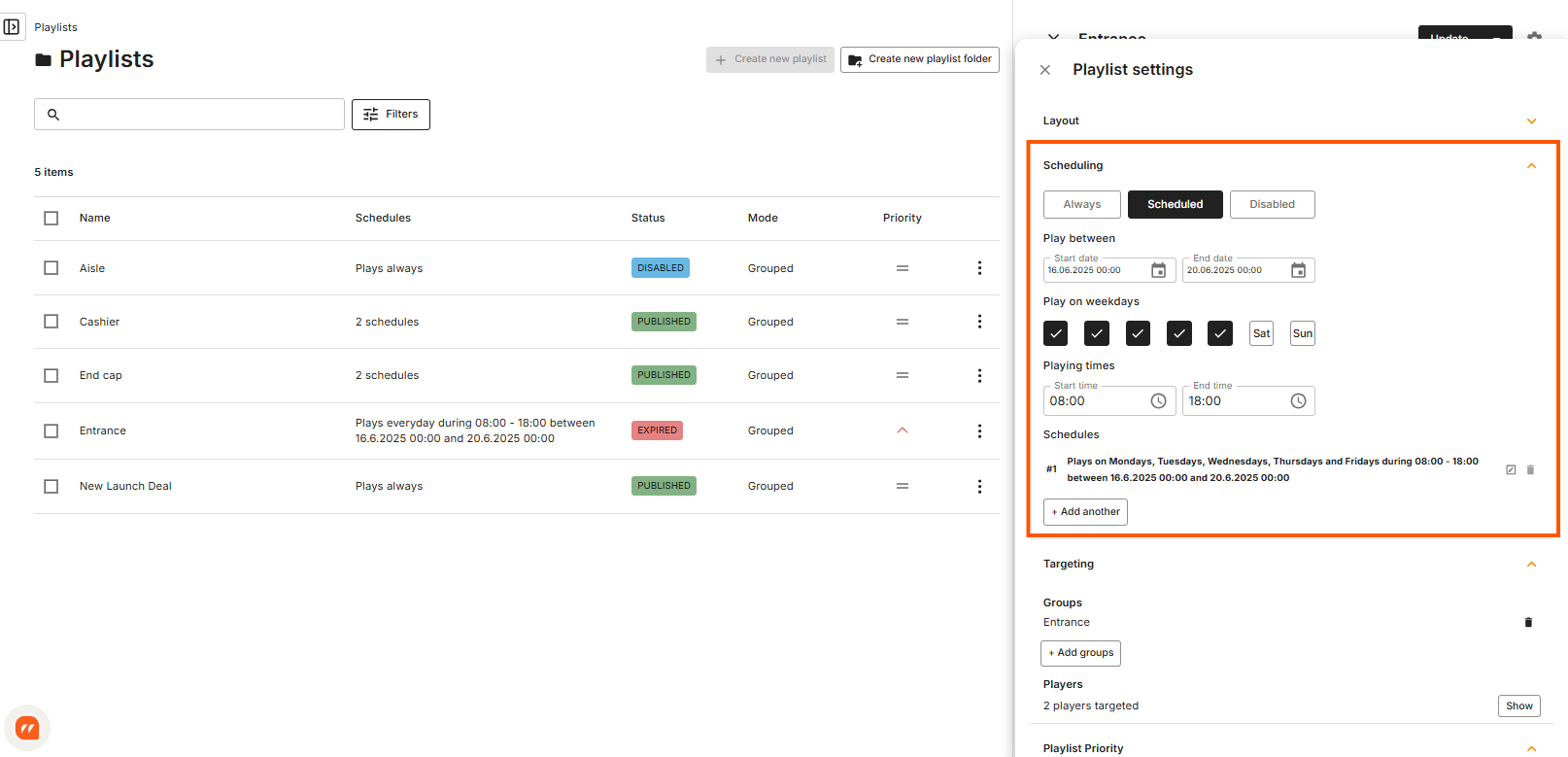
The available scheduling options are:
Always
The Playlist is available to play continuously on its assigned Devices.
Scheduled
The Playlist is active only during the dates, days and times you configure.
Multiple schedules can be added when different playback periods are needed.
Disabled
The Playlist is turned off and will not play on assigned Devices until it is enabled again.
Scheduling can include:
- Start and end dates
- Specific days of the week
- Start and end times
- Multiple scheduling periods
Assigning Playlists to Devices
A Playlist must be assigned to the appropriate Devices for its content to be displayed.
Device Groups can be used to target multiple Devices together.
The Devices available for assignment depend on your Workspace access and permissions.
Scheduling determines when the Playlist can play, while assignment determines where it can play.
Playlist Priority
Playlist Priority helps determine which Playlist should take precedence when multiple scheduled Playlists are available to the same Device at the same time.
Available priority levels include:
- Highest
- High
- Normal
- Low
- Lowest
Normal is the default priority.
Higher-priority Playlists take precedence over lower-priority Playlists when their schedules overlap.
This can be useful for content that needs to temporarily take precedence over regular programming.
Playlist Priority may not be enabled in every Workspace.
Playlist Mode
Playlist Mode determines how the Playlist and its content behave during playback.
Depending on the features available in your Workspace, modes can include:
Grouped
Content in the Playlist plays together in its configured order.
This is the default mode.
Shuffled
Content can be mixed with content from other compatible Playlists during playback.
On-Demand
The Playlist is available when manually triggered rather than following normal continuous playback.
The available Playlist Modes may depend on your Workspace configuration.
Priority and Playlist Mode
Priority and Playlist Mode control different parts of playback.
Priority helps determine which Playlist should take precedence when multiple Playlists are active.
Mode determines how the Playlist behaves when its content is played.
Together with scheduling and Device assignment, these settings determine what content is displayed on a Device.
Scheduling Individual Content
Individual media items within a Playlist can also be scheduled.
This is useful when a particular piece of content should only appear during part of the Playlist's overall schedule.
For example, a Playlist could run throughout the entire week while one promotional image is only scheduled for Friday.
The media item's schedule must fall within a period when the Playlist itself is active.
Playlist Expiration
If a Playlist has a configured end date, it becomes Expired after that date has passed.
Expired Playlists no longer participate in normal scheduled playback but remain available in Engage CMS for review or management.
Power Scheduling and Playlists
Playlist scheduling controls when content should play.
A Power Schedule controls whether the screen is operating.
This means a Playlist can be correctly scheduled and assigned but still not appear if the Device is currently powered off according to its Power Schedule.
When troubleshooting content that is not appearing, it can therefore be useful to check both the Playlist configuration and the Device's Power Schedule.
Common Questions about Playlists
What is a Playlist?
A Playlist is a collection of content that you want to display on one or more Devices.
It determines which content should play and can be configured with schedules, Device assignments and playback settings.
What is the difference between scheduling and assigning a Playlist?
Scheduling determines when the Playlist should be active.
Assigning determines where the Playlist should play.
A Playlist normally needs both an active schedule and the correct Device assignment for its content to appear.
What does Disabled mean?
A Disabled Playlist is turned off.
It will not play on its assigned Devices until it is enabled again.
What does Expired mean?
An Expired Playlist has passed its configured end date and is no longer active.
What happens if multiple Playlists are scheduled at the same time?
Several Playlists can be active on the same Device.
Their Playlist Priority and Playlist Mode help determine how playback behaves when schedules overlap.
What is Playlist Priority?
Playlist Priority determines which Playlist should take precedence when multiple Playlists are active at the same time.
Higher-priority Playlists take precedence over lower-priority Playlists.
What is the difference between Playlist Priority and Playlist Mode?
Priority determines which Playlist should take precedence.
Mode determines how the Playlist behaves during playback.
Can I schedule individual content within a Playlist?
Yes.
Individual media items can have their own schedules, but the content can only play while the Playlist itself is active.
Why is my Playlist not showing on a Device?
There can be several reasons.
Check that:
- The Playlist is published and not Disabled or Expired.
- The Playlist has an active schedule.
- The correct Devices are assigned.
- The content itself is available during the scheduled period.
- Another Playlist with a higher priority is not taking precedence.
- The Device is online and operating.
- The Device's Power Schedule has not powered the screen off.
Why can't I see Playlist Priority or other settings?
Some Playlist features depend on your user permissions or the features enabled for your Workspace.
If an option is unavailable, you may not have access to that functionality.
Why can't I assign the Playlist to a particular Device?
The Device may belong to another Workspace or you may not have permission to access it.
Check that you are working in the correct Workspace and have access to the required Device.
Where do I edit a Playlist?
Select the Playlist to open its Split View.
From there, you can access the Playlist content and open Playlist Settings using the cogwheel to manage scheduling, Device assignment and playback behaviour.